What is 24/7 Streaming and Why Does It Work?
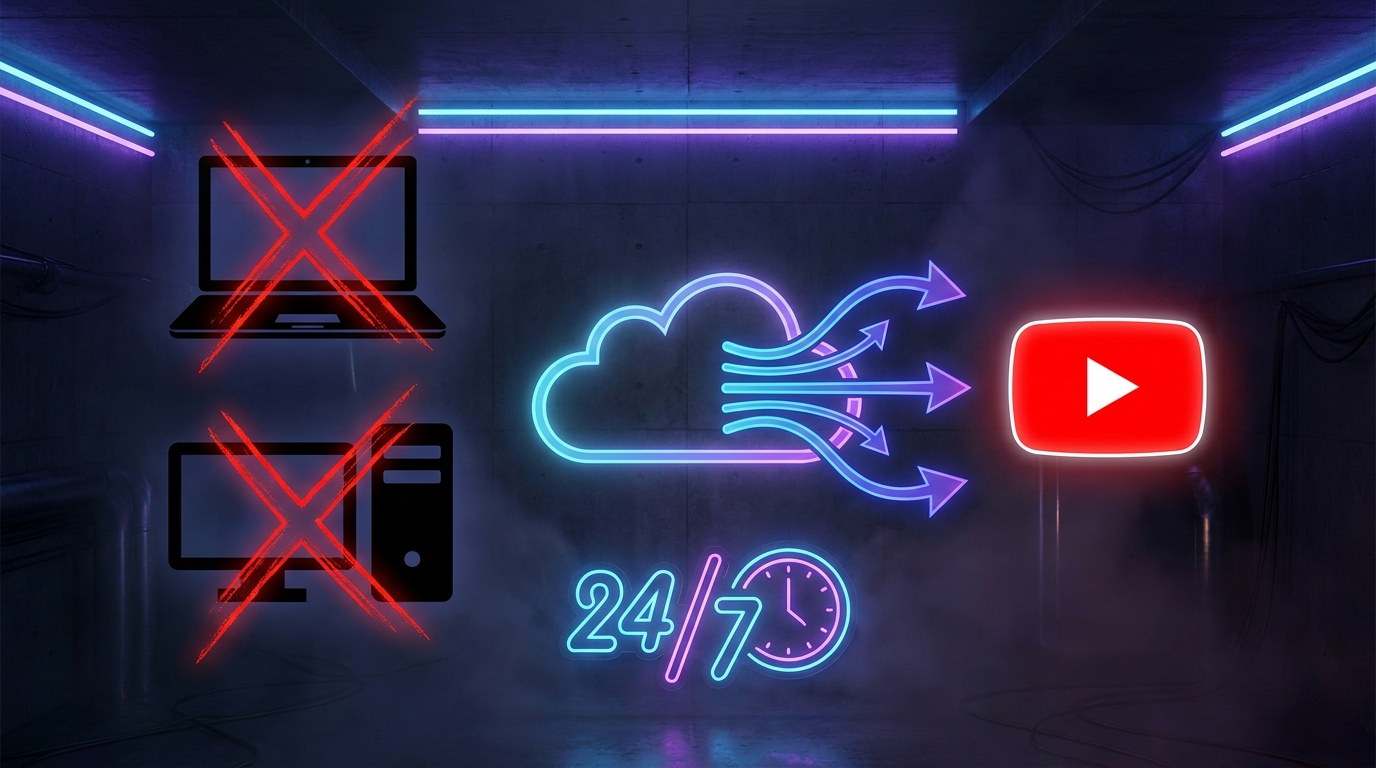
A 24/7 live stream is a YouTube live broadcast that never stops. You upload a pre-recorded video, and YouCast streams it on a continuous loop from the cloud — no PC, no OBS, no encoder running on your machine.
The reason 24/7 streams are so powerful is simple: YouTube's algorithm treats live content differently. Live streams get prioritized in search results, recommended feeds, and the "Live" tab. A 24/7 stream is essentially a permanent front-row seat in YouTube's discovery engine.
Once you start your stream, you can close your browser, turn off your computer, and go on vacation. YouCast keeps broadcasting from its cloud infrastructure around the clock.
Channels with 24/7 streams accumulate watch hours significantly faster than regular upload-only channels — dramatically accelerating YouTube Partner Program eligibility.
Step 1: Register and Get Your Free Trial
Go to youcast.cloud and sign up. After registration you instantly get a 3-day free trial — no credit card required. You land straight in the dashboard and can start your first stream right away.
The trial gives you full access to all features for 3 days. It's enough time to upload a video, connect your channel, and see a real 24/7 stream live on YouTube.
Step 2: Prepare and Upload Your Video
YouCast automatically transcodes every uploaded video into the format YouTube requires for high-quality live streaming. You don't need to pre-encode anything — just upload your file and the platform handles it.
That said, starting with good source quality always pays off. If you use a video editor (Premiere, DaVinci Resolve) or encoder (HandBrake, FFmpeg), matching YouTube's recommended specs before uploading gives you the best possible output. Here are the recommended settings:
| Resolution | 1920×1080 (1080p) recommended; 1280×720 (720p) minimum for HD badge |
| Video Codec | H.264 (most compatible); H.265/HEVC and VP9 also supported |
| Container Format | MP4 (recommended), MOV, MKV, WebM, AVI, WMV |
| Video Bitrate (1080p30) | 8 Mbps (SDR) — 12 Mbps (HDR) |
| Video Bitrate (720p30) | 5 Mbps (SDR) — 7.5 Mbps (HDR) |
| Frame Rate | 24, 25, 30, 48, 50, or 60 fps — match your source material |
| Audio Codec | AAC-LC (recommended); MP3 also accepted |
| Audio Sample Rate | 48 kHz or 96 kHz |
| Audio Channels | Stereo (2-channel) |
| Aspect Ratio | 16:9 (widescreen) |
- Navigate to Videos in the left sidebar and click "Upload Video"
- Select your file — MP4, MOV, MKV and other formats are supported
- Upload completes with a progress bar; large files resume automatically if the connection drops
- After upload, YouCast automatically transcodes the video — this takes 1–5 minutes depending on length and resolution
- Once transcoding is done, the video status changes to "Ready" and you can use it in a stream
Step 3: Choose Your Stream Creation Method
YouCast supports two ways to create a stream. Both deliver a 24/7 cloud-powered broadcast — the difference is in how much control you have over the YouTube event itself.
Method A (OAuth) is recommended for most creators. It gives you full metadata control and lets YouCast manage the YouTube event end-to-end. Use Method B if you prefer to keep your YouTube account disconnected or already have an active scheduled event in YouTube Studio.
- Method A — YouTube Channel (OAuth): Connect your YouTube account via Google OAuth in the Channels tab. YouCast creates the YouTube Live event automatically. You get full control: custom thumbnail, tags, title, description, privacy setting, and category — everything viewers see on YouTube.
- Method B — Stream Key: Copy your persistent stream key from YouTube Studio → Live streaming → Stream settings and paste it into YouCast. Faster to set up, but limited to a stream title only — the YouTube event must be managed manually from YouTube Studio.
Step 4: Create and Configure Your Stream
Navigate to Streams and click "New Stream". The setup form adapts based on your chosen method.
If you chose the YouTube Channel method, fill in the stream title, upload a thumbnail, add a description, tags, privacy setting, and category. Then select your video and enable the loop toggle so it repeats continuously.
If you chose the Stream Key method, paste your key, give the stream a title in YouCast, select your video, and enable loop.
Before starting, make sure live streaming is enabled on your YouTube channel. Go to YouTube Studio → Settings → Channel → Feature Eligibility. New channels need phone verification and a 24-hour wait after enabling.
| Title | Name of the YouTube Live event (SEO-friendly, include your main keyword) |
| Video | The uploaded and transcoded video to broadcast on loop |
| Loop | Enable to repeat the video continuously — this is what makes it 24/7 |
| Thumbnail | Custom thumbnail image for the YouTube event (Channel method only) |
| Tags | Keyword tags for YouTube discoverability (Channel method only) |
| Privacy | Public, Unlisted, or Private (Channel method only) |
| Category | YouTube content category (Channel method only) |
Step 5: Start the Stream and Monitor
Click "Start Stream". YouCast initializes the cloud encoder and connects to YouTube's servers. Your stream is live within 30–60 seconds. YouTube may take an additional 1–2 minutes to show the "LIVE" badge on your channel page.
The YouCast dashboard shows real-time stream health: current status, uptime, and the video being broadcast. If a problem is detected — server interruption, YouTube API issue, network drop — YouCast automatically restarts the stream within seconds. No action needed from you.
Open your YouTube channel in a separate tab to confirm the stream is showing as live. Leave it running for at least 48 hours before judging performance — YouTube needs time to index and surface new live content.
Bonus: Schedule Automatic Daily Restarts
Once your stream is running, you can set up a weekly restart schedule. This is useful if you want to refresh your live event at the same time each day — for example to reset the view count, start with a fresh YouTube event, or simply maintain a predictable schedule for your audience.
Open your stream and click the "Auto-Restart" button. You'll see a weekly calendar grid where you can add restart times for each day. Each restart automatically stops the current stream and starts a new one a few seconds later.
Scheduled restarts are completely separate from failure recovery. Even with restarts scheduled, YouCast still auto-recovers from unexpected failures in real time.
- Set up to 3 scheduled restarts per day, per stream
- Minimum 10-minute gap between restart times
- All times are in your local timezone
- No manual action needed — restarts happen automatically as scheduled
What to Do After Going Live
Your stream is live — now optimize it for discovery. Write a compelling stream title with your main keyword (e.g., "Lofi Hip Hop 24/7 — Study & Chill Radio"). If you used the Channel method, make sure your thumbnail stands out in search results and recommended feeds.
Check your YouTube Studio analytics after 24 hours. Look at average view duration — if viewers are staying for several minutes, your content resonates. If they're dropping off quickly, try a different video with a stronger opening.
When you're ready to scale up, add more stream slots via the subscription calculator in YouCast. You can run multiple simultaneous streams — each with a different video — on separate YouTube channels or the same one.
Frequently Asked Questions
Yes — signing up gives you an instant 3-day free trial with full feature access, no credit card required.
No. YouCast handles encoding and looping in the cloud — you can close your browser or turn off your computer after starting the stream, and it keeps broadcasting.
YouCast detects the interruption and automatically restarts the stream within seconds — no manual action is required.
Ready to Apply This?
Start your 24/7 stream today — no PC required, no OBS, no technical setup.