Why Use an Encoder
YouTube describes three ways to stream: a webcam, a mobile device or an encoder, meaning streaming software or a hardware box. An encoder lets you share your screen or gameplay, use external audio and video hardware, and manage an advanced production with several cameras and microphones.
An encoder converts your video into a digital format YouTube can ingest. Some are apps on your computer and others are standalone hardware.
The Steps to Go Live Now
If you have streamed before, your previous settings load automatically, including the stream key, so there is nothing to update in your encoder.
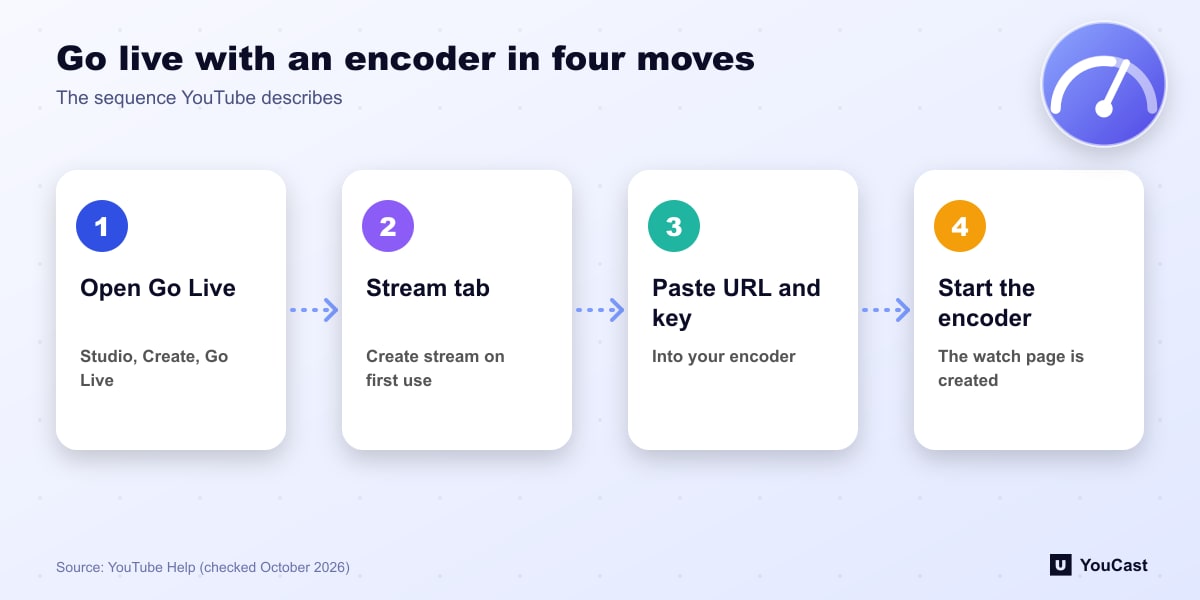
- 1In YouTube Studio click Create, then Go Live, to open the Live Control Room.
- 2Open the Stream tab. On your first stream, edit it and click Create stream.
- 3In your encoder, choose YouTube if it is offered. Otherwise paste the stream URL into the server (RTMP) field.
- 4Paste the stream key into the encoder's Stream Key field.
- 5Start the stream from the encoder. A watch page is created, notifications go out and the stream appears in subscriber feeds.
Scheduling and Reusing Settings
Scheduling lets you promote a stream: viewers get reminders for upcoming streams and you can share the URL in advance. In the Live Control Room open the Manage tab, click Schedule stream and either create a new one or click Reuse settings.
Reuse settings copies the previous stream's metadata, settings and stream key, and you can still change the new stream after it is created. When it is time, start your encoder, wait for the preview to appear in the Live Control Room, then click Go live.
Ending the Stream and the 12-Hour Archive Rule
To end, stop sending content from the encoder (and click End Stream if you scheduled it). YouTube says all streams under 12 hours are automatically archived and can be found in the Live tab of Studio.
The Live Control Panel is a compact pop-out version of the Live Control Room that shows views and chat revenue. It is available when you stream with an encoder or a webcam.
Skip the Setup With YouCast
YouCast turns the videos you upload into a 24/7 live stream that runs from the cloud, to YouTube and, with a stream key, to Twitch, Kick and Instagram, so there is no encoder to configure, no computer to keep awake and no home upload line to saturate.
The steps above are what an encoder needs. With YouCast you skip the encoder: choose the channel and the video, set the title and thumbnail and start the stream from the dashboard.
You can try one stream on the free trial and add more streams as the channel grows.
Sources
- YouTube Help: Create a YouTube live stream with an encoder — checked October 2026
- YouTube Help: Manage live stream settings — checked October 2026
Further reading
- YouTube Help: Get started with live streaming — Official overview of live streaming on YouTube
- YouTube Help: Choose live encoder settings, bitrates, and resolutions — The ingestion settings table
- YouTube Help: YouTube Partner Program overview & eligibility — Thresholds and benefits
- YouTube Help: YouTube channel monetization policies — What reviewers check
Start Your 24/7 Stream Today
No PC needed. No OBS. Just upload your video and go live on YouTube — 24/7, from the cloud.