How the Errors Are Shown
The Live Dashboard and Live Control Room check the stream you send and show messages next to the Health Indicator, each with a timestamp. If the error is not fixed it keeps appearing. Red errors are critical and may stop your event from starting or cause viewer problems. Yellow errors are moderate and may degrade quality.
Format and Bitrate Errors
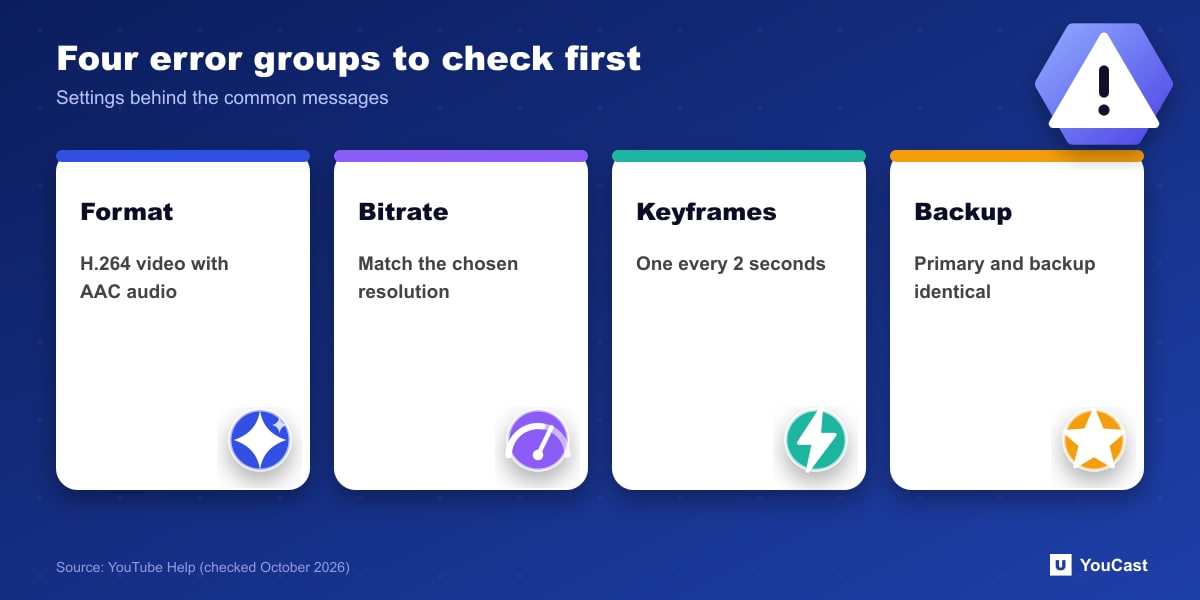
- Incorrect stream format: set H.264 video and AAC audio (the page also lists MP3 as a supported audio codec).
- Incorrect bitrates: without a variable-resolution entry point, use the exact bitrate for the resolution you chose. If bandwidth is short, lower the resolution.
- Audio bitrate: YouTube recommends 128 Kbps and a 44.1 KHz sample rate in these messages.
- Daily live stream limit: YouTube limits how many live streams a channel can create in a 24-hour period.
Audio and Video Stream Errors
- No audio: YouTube's pipeline requires audio on all videos, and some encoders have a checkbox to turn it on.
- Several audio or video streams: send exactly one of each.
- More than 2 audio channels: the message lists only mono and stereo. YouTube's separate 5.1 page says 5.1 is supported with specific settings, so that message predates it.
- Interlaced video is not supported: make it progressive, or you will see artifacts.
- Frame rate too high: lower it, and remember to change the keyframe frequency with it.
Keyframes, Resolution and Backup Streams
For keyframes, YouTube says to send them every 2 seconds, which is every 60 frames at 30 fps. A frequency of four seconds or less is required, and YouTube's pipeline wants a Closed GOP for optimal transcoding. Your video size must match the width and height of the resolution you chose.
If you use a backup stream, the primary and backup must have exactly the same settings: resolution, codecs, interlacing, profile, bitrate, frame rate, keyframe frequency, audio sample rate, audio channels and audio codec. Otherwise failover will not work properly.
Skip the Setup With YouCast
YouCast turns the videos you upload into a 24/7 live stream that runs from the cloud, to YouTube and, with a stream key, to Twitch, Kick and Instagram, so there is no encoder to configure, no computer to keep awake and no home upload line to saturate.
Most of these messages come from encoder settings. YouCast handles the stream settings for you, so a wrong codec or keyframe interval is not something you set by hand.
You can try one stream on the free trial and add more streams as the channel grows.
Sources
- YouTube Help: Live streaming error messages — checked October 2026
- YouTube Help: Stream 5.1 surround sound audio on YouTube — checked October 2026
Further reading
- YouTube Help: Get started with live streaming — Official overview of live streaming on YouTube
- YouTube Help: Choose live encoder settings, bitrates, and resolutions — The ingestion settings table
- YouTube Help: YouTube Partner Program overview & eligibility — Thresholds and benefits
- YouTube Help: YouTube channel monetization policies — What reviewers check
Start Your 24/7 Stream Today
No PC needed. No OBS. Just upload your video and go live on YouTube — 24/7, from the cloud.