Where to Find the Stream Key
The stream key lives in the Live Control Room. Open YouTube Studio, click Create then Go Live, select the Stream tab and look for the Stream key section. Your encoder needs two values from this tab: the stream URL (often labelled RTMP server) and the key.
The key is hidden by default. Treat it like a password, because anyone who has it can send video to your stream.
How to Reset a Stream Key
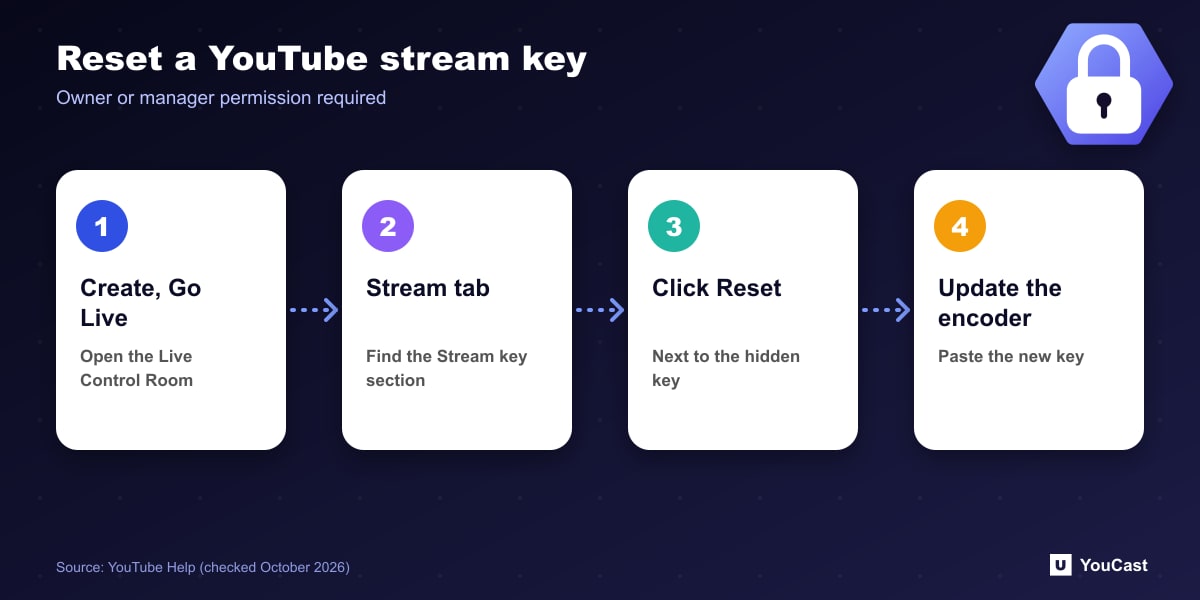
YouTube says you must be a channel owner or manager to reset a stream key. Editors and viewers do not have this permission.
- 1Open YouTube Studio, click Create, then Go Live.
- 2Select the Stream tab in the left menu.
- 3Find the Stream key section and click Reset next to the hidden key.
- 4Copy the newly generated key and paste it into your encoder.
When the Key Stops Working
YouTube's troubleshooting page gives one fix for an error when starting a third-party encoder: get a new stream key in the Live Control Room and update the encoder. If you log into YouTube from a streaming app without using a key, YouTube says to contact that software's support, because the app may need an update to work with YouTube Live.
If the Stream tab does not offer a key at all, check that live streaming is enabled. The first activation can take up to 24 hours, according to YouTube. That last point is our reading and not a statement on the key page.
Limits That Depend on the Key
- Up to 10 active streams per channel and 3 active streams per stream key, applied at the same time.
- Once either limit is reached, you cannot start additional streams.
- Dual streaming through a third-party encoder needs a second stream key for the vertical stream.
- Reuse settings copies the previous stream key along with the metadata.
Skip the Setup With YouCast
YouCast turns the videos you upload into a 24/7 live stream that runs from the cloud, to YouTube and, with a stream key, to Twitch, Kick and Instagram, so there is no encoder to configure, no computer to keep awake and no home upload line to saturate.
YouCast supports a connected channel or a custom stream key. The channel route means you never handle a key, and with a key you can reset it in YouTube Studio whenever you need to.
You can try one stream on the free trial and add more streams as the channel grows.
Sources
- YouTube Help: Manage live stream settings — checked October 2026
- YouTube Help: Create a YouTube live stream with an encoder — checked October 2026
- YouTube Help: Troubleshoot your YouTube live stream — checked October 2026
- YouTube Help: Get started with live streaming — checked October 2026
Further reading
- YouTube Help: Choose live encoder settings, bitrates, and resolutions — The ingestion settings table
- YouTube Help: YouTube Partner Program overview & eligibility — Thresholds and benefits
- YouTube Help: YouTube channel monetization policies — What reviewers check
- YouTube Help: Advertiser-friendly content guidelines — What can earn ad revenue
Start Your 24/7 Stream Today
No PC needed. No OBS. Just upload your video and go live on YouTube — 24/7, from the cloud.