In short
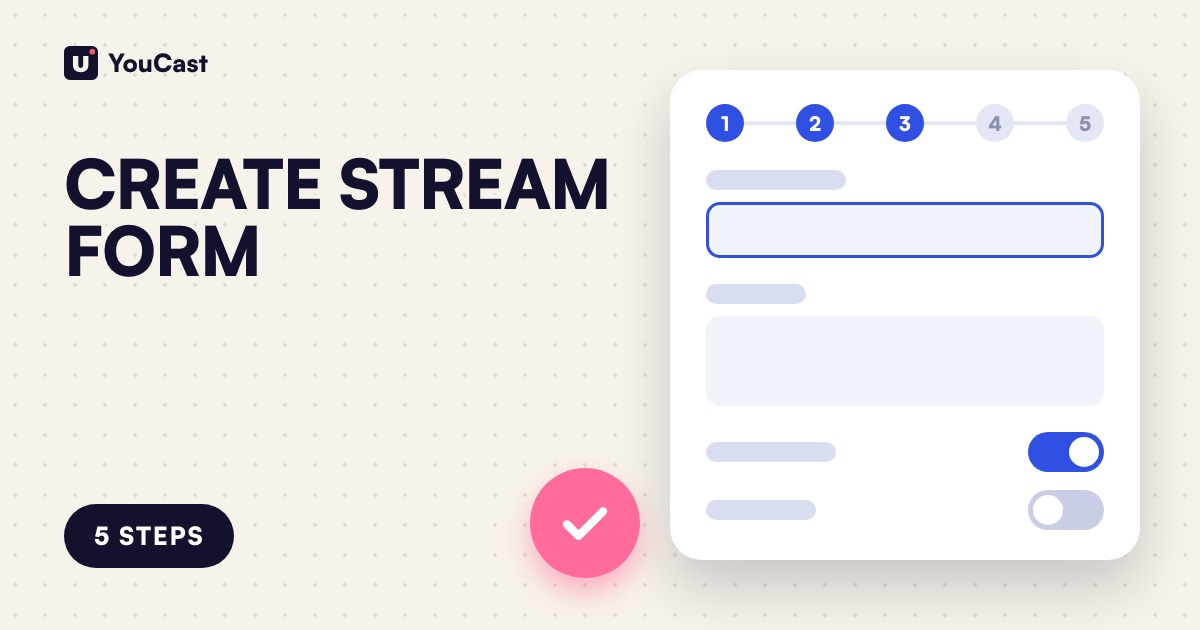
The Create Stream form has five steps: Source, Videos, Details, Settings and Schedule, or four with a stream key. The playlist takes up to 20 videos, the name up to 100 characters and the thumbnail a JPG or PNG up to 2 MB. The default schedule is manual control.
Five Steps, One Form
The Create Stream form opens as a panel when you press New on the Streams page. It has five steps: Source, Videos, Details, Settings and Schedule. When you stream with a stream key it has four, because the Settings step is skipped.
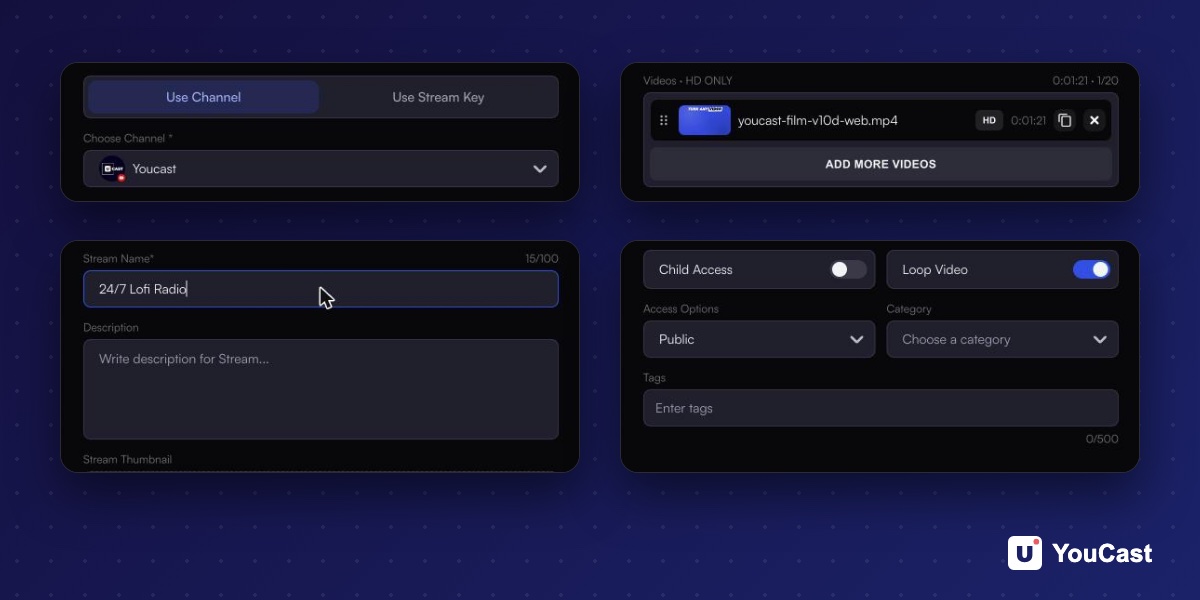
Step 1: Source
- Use Channel: choose one of your connected YouTube channels from the list, or pick Connect a channel.
- Use Stream Key: choose YouTube, Twitch or Kick, paste the key and tick Save key for future streams if you want to reuse it.
Step 2: Videos
The playlist takes up to 20 videos, and a counter shows how many you have added. Add videos opens a list with a search box and an Upload video button. Each video in the list shows a quality badge such as 4K, HD or SD, and the added videos show their length.
Step 3: Details
- Stream Name is required and takes up to 100 characters.
- Description is optional.
- Stream Thumbnail: click to upload a JPG or PNG up to 2 MB.
Step 4: Settings
- Child Access: a switch, off by default.
- Loop Video: a switch, on by default.
- Access Options: Public by default.
- Category and Tags: the Tags field has a limit of 500.
Step 5: Schedule
Choose how the stream starts and stops, from manual control to a one-time schedule, a recurring window or back-to-back cycles. The default is manual control.
How to Schedule a 24/7 YouTube Stream
The four schedule types in detail.
YouTube Thumbnail Requirements: Size, Format, Limits and Policies
What YouTube asks of a thumbnail.
5 Ways a Video Playlist Improves Your 24/7 Stream
Why several videos in a row help.
Start Streaming with YouCast
Upload your videos once and stream them 24/7 from the cloud.
Skip the Setup With YouCast
YouCast turns the videos you upload into a 24/7 live stream that runs from the cloud, to YouTube and, with a stream key, to Twitch, Kick and Instagram, so there is no encoder to configure, no computer to keep awake and no home upload line to saturate.
Everything in this article is in one panel: Streams, then New. Fill in the five steps and the stream is ready to start.
You can try one stream on the free trial and add more streams as the channel grows.
Sources
- YouCast Docs: Scheduling — checked November 2026
Further reading
- YouTube Help: Get started with live streaming — Official overview of live streaming on YouTube
- YouTube Help: Choose live encoder settings, bitrates, and resolutions — The ingestion settings table
- YouTube Help: YouTube Partner Program overview & eligibility — Thresholds and benefits
- YouTube Help: YouTube channel monetization policies — What reviewers check
Start Your 24/7 Stream Today
No PC needed. No OBS. Just upload your video and go live on YouTube — 24/7, from the cloud.