What the LIVE Badge Is
Google says you can get a LIVE badge on your video by marking it up with BroadcastEvent. The badge applies to any public video that is live-streamed for any length of time, and Google lists sporting events, awards shows, influencer videos and live-streamed video games as examples.
You add BroadcastEvent as a publication inside a VideoObject, and you need to follow the LIVE badge guidelines.
The Markup Pattern
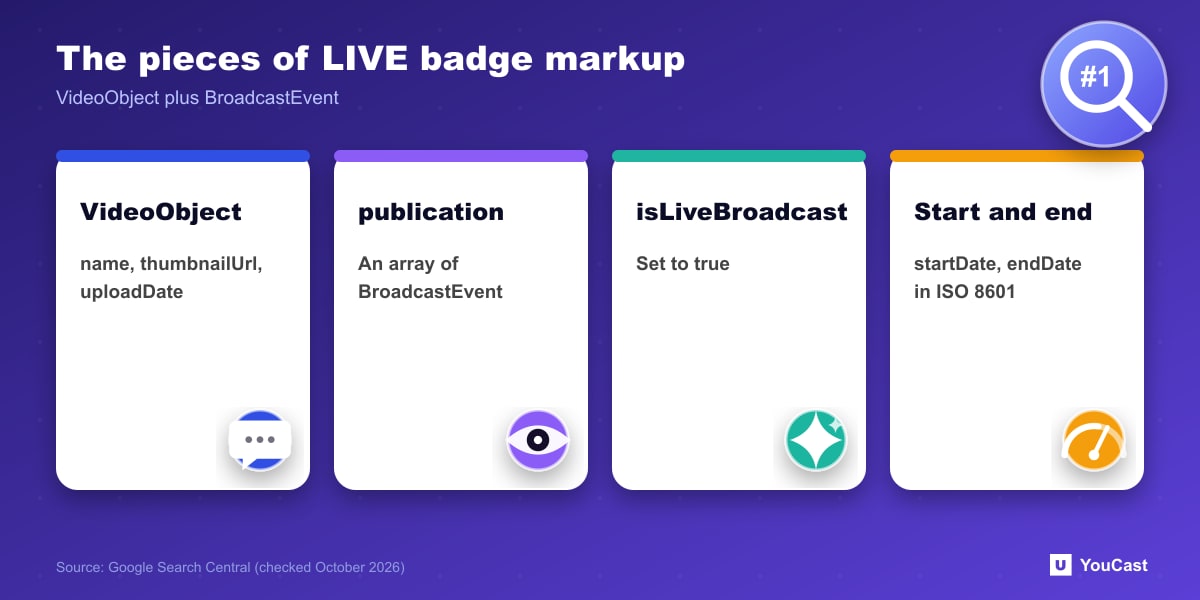
In Google's JSON-LD example, a VideoObject has a publication array, and each entry is a BroadcastEvent with these properties:
Recommended VideoObject properties include contentUrl (or embedUrl), description, duration and interactionStatistic. Use unique text for name and description on each video.
- isLiveBroadcast set to true.
- startDate: when the broadcast started, in ISO 8601 format.
- endDate: when it ended.
- The VideoObject still needs its required properties: name, thumbnailUrl and uploadDate.
Using the Indexing API
Google says to use the Indexing API so it crawls your livestream page at the right time. Call it when the video goes live, when the video has stopped streaming and the page markup was updated to show the endDate, and whenever the markup changes. The Indexing API only supports livestream videos.
Guidelines to Follow
- Do not use vulgar or potentially offensive language in the structured data.
- Put the markup on a page where users can actually watch the video.
- Keep the markup consistent with what is visible on the page.
Put This Into Practice With YouCast
YouCast turns the videos you upload into a 24/7 live stream that runs from the cloud, to YouTube and, with a stream key, to Twitch, Kick and Instagram, so there is no encoder to configure, no computer to keep awake and no home upload line to saturate.
If you embed your YouCast stream on your own page, BroadcastEvent markup can help Google show the LIVE badge. Update the markup when the stream goes live and when it ends.
You can try one stream on the free trial and add more streams as the channel grows.
Sources
- Google Search Central: Video structured data (VideoObject, Clip, BroadcastEvent) — checked October 2026
- Google Search Central: Video SEO best practices — checked October 2026
Further reading
- Google Search Central: How to write meta descriptions — Snippets and descriptions
- Google Search Central: Influencing title links in Google Search — Titles that get shown
- Google Search Central: Creating helpful, reliable, people-first content — What Google rewards
- Google Search Central: Image SEO best practices — Alt text, file names and formats
Start Your 24/7 Stream Today
No PC needed. No OBS. Just upload your video and go live on YouTube — 24/7, from the cloud.