In short
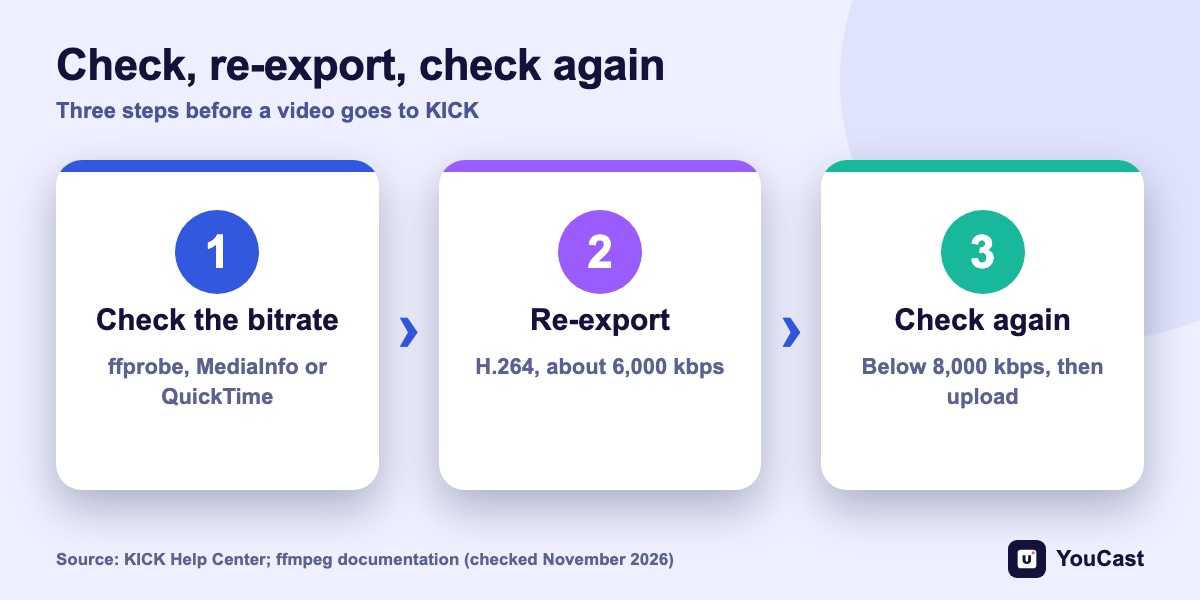
KICK accepts video bitrate up to 8,000 kbps, and a pre-recorded file above that can get a stream closed soon after it starts. Read the bitrate with QuickTime, MediaInfo or ffprobe, re-export under the limit with a video editor, HandBrake or ffmpeg, then check the result.
Why Check the File First
KICK accepts a video bitrate of up to 8,000 kbps. A pre-recorded video above that can get a stream closed soon after it starts. Checking the file takes a minute and saves a failed first run.
Check the Bitrate
- QuickTime Player on a Mac: open the video, press Command and I, and read the data rate.
- MediaInfo (free for Windows, Mac and Linux): open the file and read the video bit rate and the overall bit rate.
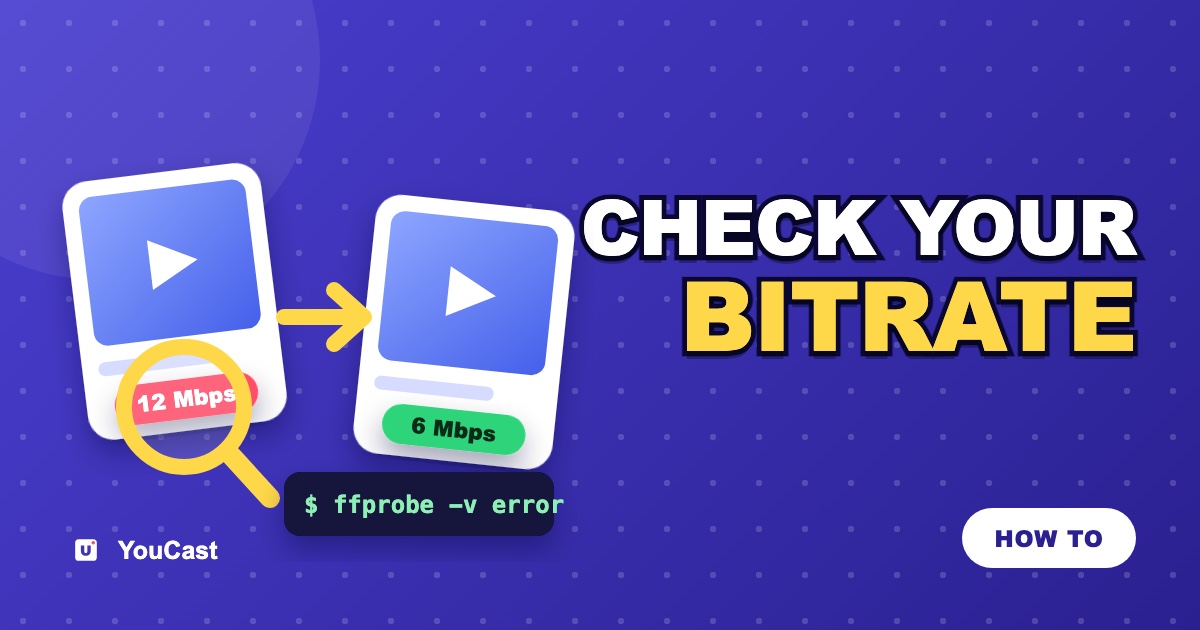
- ffprobe, which comes with ffmpeg: run ffprobe -v error -select_streams v:0 -show_entries stream=codec_name,width,height,r_frame_rate,bit_rate -of default=noprint_wrappers=1 input.mp4
ffprobe prints bits per second, so divide by 1,000 to get kbps: 12000000 is 12,000 kbps. Some containers print N/A for the video stream. In that case ask for the whole file with -show_entries format=bit_rate. Audio adds a small amount on top of the video value.
The Numbers to Match
- Video codec: H.264. H.265 is not supported on KICK.
- Bitrate: 8,000 kbps at most. Aim for about 6,000 kbps.
- Resolution: 1920x1080 at most. Frame rate: 60 fps at most.
- Audio: stereo, 48 kHz at most.
For comparison, Twitch lists 6,000 kbps for 1080p at 60 fps, and YouTube lists 6 to 17 Mbps for H.264 at the same resolution. A file at about 6,000 kbps therefore sits at the lower end of YouTube's range and is inside the limits of all three platforms.
Re-Export Under the Limit
Use your video editor, HandBrake or ffmpeg. The target is about 6,000 kbps, which leaves room below the 8,000 kbps limit.
- Video editor: export H.264 with a target bitrate of 6,000 kbps and, if there is a field for it, a maximum bitrate of 8,000 kbps.
- HandBrake: in the Video tab choose Average Bitrate and enter 6000. An average can still rise in busy scenes, so check the result afterwards.
- ffmpeg: ffmpeg -i input.mp4 -c:v libx264 -b:v 6000k -maxrate 6000k -bufsize 12000k -c:a aac -b:a 160k -ar 48000 -ac 2 output.mp4
With ffmpeg, add -vf scale=1920:1080 if the video is larger than 1080p, and -r 60 if its frame rate is above 60 fps. The maxrate and bufsize options cap the bitrate, which is what a pre-recorded file needs.
Check the Result
- 1Run the same bitrate check on the new file. It should read about 6,000 kbps and stay below 8,000.
- 2Upload the new file, stop the stream, choose the new video in the stream settings and start it again.
- 3Watch the first minutes on Kick. If the stream still drops, contact support with the video's resolution, frame rate and bitrate.
Kick Closes Your Stream After 10 Seconds? Check the Video Bitrate
A real case and what KICK documents.
KICK OBS Settings: CBR and 8,000 kbps
The limits and presets in detail.
Recommended Upload Encoding Settings for YouTube
The YouTube side of video export.
Start Streaming with YouCast
Upload your videos once and stream them 24/7 from the cloud.
Frequently asked questions
What is KICK’s maximum video bitrate?
KICK accepts a video bitrate of up to 8,000 kbps.
How do I read a video file’s bitrate?
With QuickTime, MediaInfo or ffprobe. The article shows each way.
How do I lower the bitrate of a video?
Re-export it under the limit with a video editor, HandBrake or ffmpeg, then check the result again.
Let the Cloud Handle the Encoding
YouCast turns the videos you upload into a 24/7 live stream that runs from the cloud, to YouTube and, with a stream key, to Twitch, Kick and Instagram, so there is no encoder to configure, no computer to keep awake and no home upload line to saturate.
Prepare videos for Kick at about 6,000 kbps before you upload them to YouCast, and keep the originals so you can re-export a file at any time.
You can try one stream on the free trial and add more streams as the channel grows.
Sources
- KICK Help Center: How to stream on KICK.com — checked November 2026
- KICK Help Center: Settings and stream quality on the KICK Go Live app — checked November 2026
- Twitch Help: Broadcasting Guidelines — checked November 2026
- YouTube Help: Choose live encoder settings, bitrates, and resolutions — checked November 2026
Further reading
- KICK Help Center: Understanding KICK's revenue split — The 95/5 split
- KICK Help Center: KICK payout schedule, thresholds, and methods — How payouts work
- OBS Studio: Quick start guide — Free streaming software documentation
Start Your 24/7 Stream Today
No PC needed. No OBS. Just upload your video and go live on YouTube — 24/7, from the cloud.