Recommended Settings
Twitch lists settings for NVIDIA NVENC and x264 encoders. These are the bitrate and frame-rate pairs it gives:
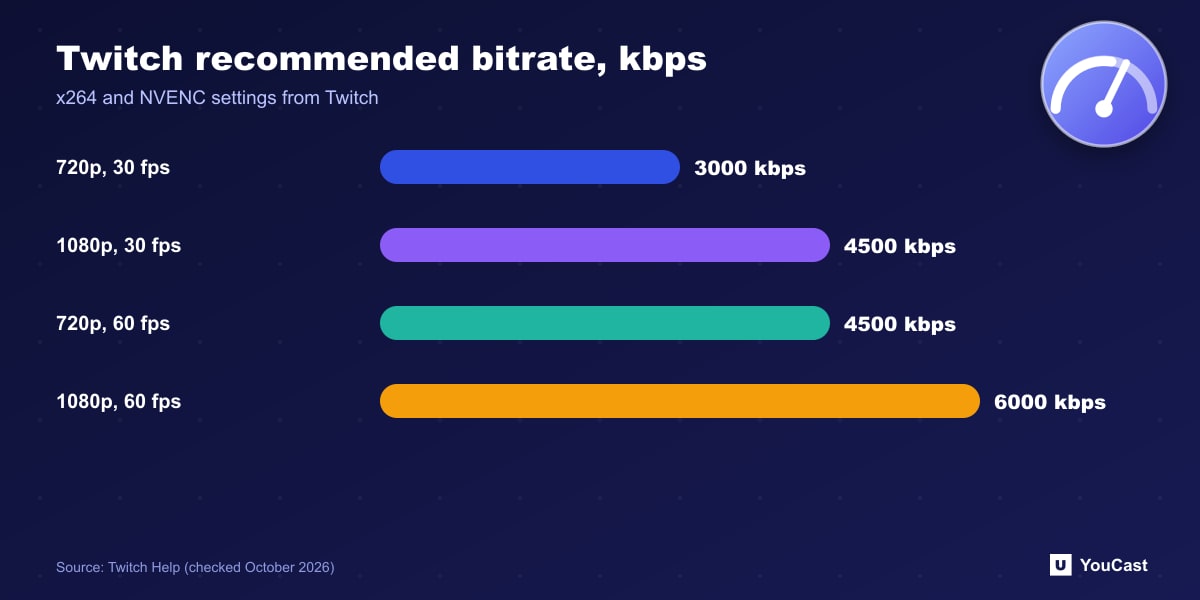
Twitch says it is always better to have a stable stream than to push for higher quality that could cause dropped frames or test the limits of your connection.
- 1080p at 60 fps: 6,000 kbps, CBR, keyframe interval 2 seconds.
- 1080p at 30 fps: 4,500 kbps.
- 720p at 60 fps: 4,500 kbps.
- 720p at 30 fps: 3,000 kbps.
Why Twitch Prefers CBR
Twitch suggests all broadcasters use constant bitrate. Its reasoning is that variable bitrate (VBR) streams drop to a much lower bitrate during lulls, which can cause buffering and dropped frames when the bitrate spikes back up. It also says VBR can cause "broadcast starvation" over some ISP routes, where video data arrives late or not at all, leading to lag, buffering and disconnections for everyone watching, including lower resolutions.
Audio and Broadcast Length
For a channel that wants an unbroken round-the-clock broadcast, the 48-hour maximum is the number to plan around, because Twitch states that it cannot be changed.
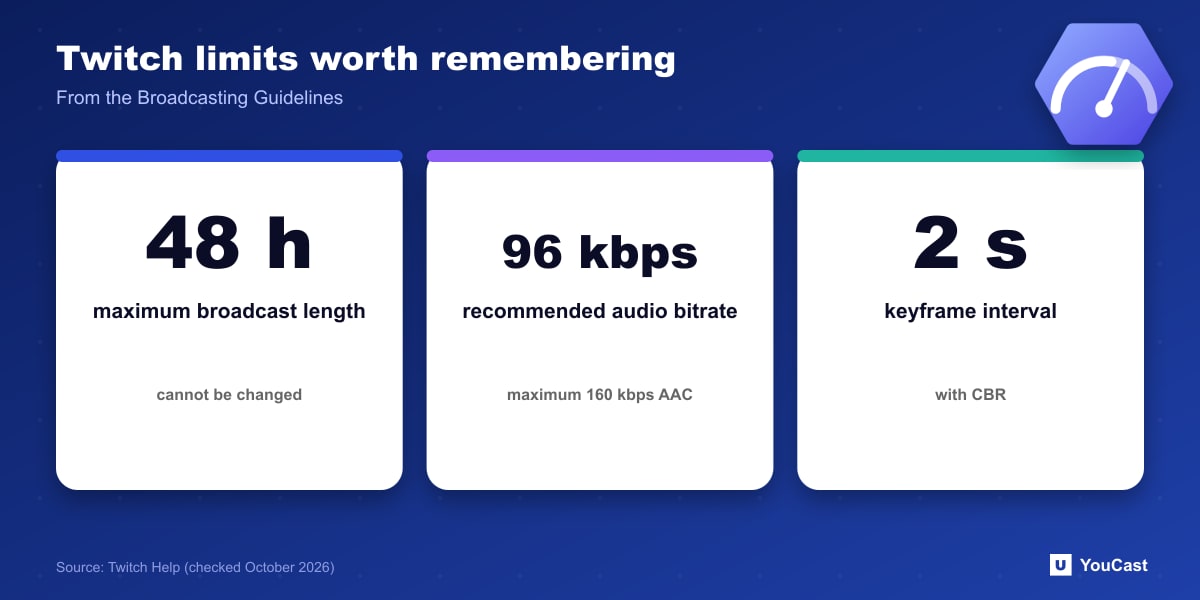
- Audio codec AAC-LC, stereo or mono; recommended bitrate 96 kbps for maximum compatibility, with a maximum of 160 kbps.
- Maximum broadcast length: 48 hours, which Twitch says cannot be changed. Reconnection behavior may depend on the encoder used.
How It Compares With YouTube
YouTube's published figures are higher. Our comparison article puts the two sets of numbers side by side.
Let the Cloud Handle the Encoding
YouCast turns the videos you upload into a 24/7 live stream that runs from the cloud, to YouTube and, with a stream key, to Twitch, Kick and Instagram, so there is no encoder to configure, no computer to keep awake and no home upload line to saturate.
Twitch limits a single broadcast to 48 hours, so a stream there needs to be restarted. In YouCast you can send a pre-recorded video to Twitch with your stream key and use the auto-restart schedule to start a fresh broadcast on a regular rhythm.
You can try one stream on the free trial and add more streams as the channel grows.
Sources
- Twitch Help: Broadcasting Guidelines — checked October 2026
Further reading
- Twitch Help: Twitch Partner Program Overview — Partner requirements and benefits
- Twitch Help: Joining the Affiliate Program — Affiliate requirements
- Twitch Help: Simulcasting Guidelines FAQ — Multistream rules
- OBS Studio: Quick start guide — Free streaming software documentation
Start Your 24/7 Stream Today
No PC needed. No OBS. Just upload your video and go live on YouTube — 24/7, from the cloud.