What Simulstreaming Is
YouTube defines going live with the same content on several platforms at the same time as simulstreaming. Its best practices start with a verified channel that has live enabled, with the note that enabling your first live stream takes at least 24 hours after your first request.
You also need active accounts in good standing on every platform, and you need to know where to find the stream key and RTMP server URL for each one, unless your encoder does not require them.
The Bandwidth Rule
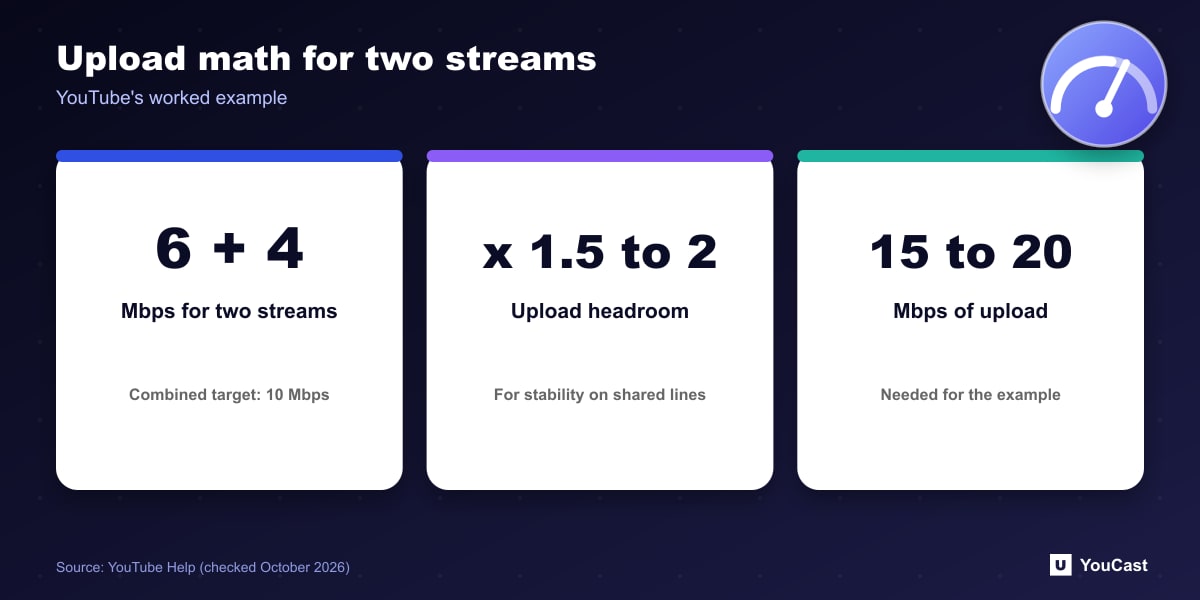
YouTube's rule: estimate your bitrate by adding up the target bitrate of each stream. Its example is 6 Mbps for stream one and 4 Mbps for stream two, a combined target of 10 Mbps. For stability, especially on shared connections, aim for an upload speed 1.5 to 2 times that total, which means 15 to 20 Mbps for a 10 Mbps target.
It also asks you to run a realistic speed test with typical audio, video and movement, and to watch the stream health alerts in the Live Control Room during the stream.
Local Encoder or Cloud Service
Each platform also has its own rules about promoting other platforms. For Twitch, see our simulcasting rules guide.
- Local hardware or software encoder: your processor does the work and supports several simultaneous streams. Choose it for the highest quality, complete control and a powerful computer.
- Cloud service encoder: you send one high-quality stream and the service distributes it to your destinations. Choose it for simplicity, an older or slow computer, or more than two channels.
Where to Go Next
Once the encoder is chosen, configure it to send to the YouTube event you created. You can repeat the process to run several YouTube streams at once, up to the active stream limit.
Let the Cloud Handle the Encoding
YouCast turns the videos you upload into a 24/7 live stream that runs from the cloud, to YouTube and, with a stream key, to Twitch, Kick and Instagram, so there is no encoder to configure, no computer to keep awake and no home upload line to saturate.
Every extra destination adds to your upload. In YouCast the streams run in the cloud, to YouTube and, with a stream key, to Twitch, Kick and Instagram, so none of that upload goes through your own line.
You can try one stream on the free trial and add more streams as the channel grows.
Sources
- YouTube Help: Stream across platforms — checked October 2026
Further reading
- YouTube Help: Get started with live streaming — Official overview of live streaming on YouTube
- YouTube Help: Choose live encoder settings, bitrates, and resolutions — The ingestion settings table
- YouTube Help: YouTube Partner Program overview & eligibility — Thresholds and benefits
- YouTube Help: YouTube channel monetization policies — What reviewers check
Start Your 24/7 Stream Today
No PC needed. No OBS. Just upload your video and go live on YouTube — 24/7, from the cloud.