Container and Codecs
YouTube's recommended upload encoding page lists these baseline settings. They matter for 24/7 channels because the files you prepare become the source of the loop.
- Container: MP4, with no edit lists and the moov atom at the front of the file (Fast Start).
- Video codec: H.264, progressive scan, High Profile, 2 consecutive B-frames, closed GOP with a GOP of half the frame rate, CABAC.
- Chroma subsampling: 4:2:0. Bitrate: variable, with no limit required.
- Audio codec: AAC-LC, Opus or Eclipsa Audio; stereo (or stereo plus 5.1); sample rate 48 kHz.
Frame Rate and Interlacing
Encode and upload at the frame rate the content was recorded in. Common rates are 24, 25, 30, 48, 50 and 60 frames per second, and others are acceptable. Interlaced content should be deinterlaced before upload: for example, 1080i60 becomes 1080p30, and 60 interlaced fields per second become 30 progressive frames per second.
Recommended SDR Video Bitrates
The bitrates are recommendations for reference, with standard frame rates (24, 25, 30) first and high frame rates (48, 50, 60) second:
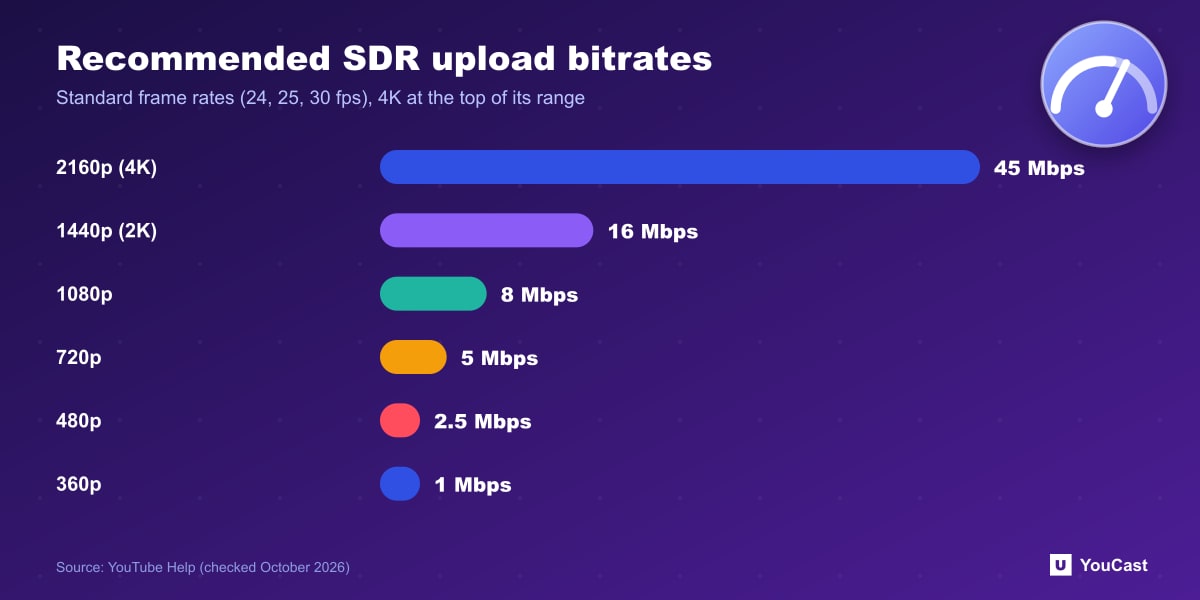
- 2160p (4K): 35 to 45 Mbps and 53 to 68 Mbps.
- 1440p (2K): 16 Mbps and 24 Mbps.
- 1080p: 8 Mbps and 12 Mbps.
- 720p: 5 Mbps and 7.5 Mbps.
- 480p: 2.5 Mbps and 4 Mbps. 360p: 1 Mbps and 1.5 Mbps.
HDR and Audio Bitrates
HDR uploads get higher recommendations: 1080p is 10 Mbps (15 Mbps at high frame rates), 1440p is 20 Mbps (30) and 2160p is 44 to 56 Mbps (66 to 85). The page marks 480p and 360p as not supported for HDR. Recommended audio bitrates are 128 kbps for mono, 384 kbps for stereo and 512 kbps for 5.1.
These are upload recommendations. Live ingestion has its own table, covered in our encoder settings guide.
Let the Cloud Handle the Encoding
YouCast turns the videos you upload into a 24/7 live stream that runs from the cloud, to YouTube and, with a stream key, to Twitch, Kick and Instagram, so there is no encoder to configure, no computer to keep awake and no home upload line to saturate.
Prepare your loop videos with these settings and upload them to YouCast. A clean MP4 with H.264 video and AAC audio is the safest starting point.
You can try one stream on the free trial and add more streams as the channel grows.
Sources
- YouTube Help: YouTube recommended upload encoding settings — checked October 2026
Further reading
- YouTube Help: Get started with live streaming — Official overview of live streaming on YouTube
- YouTube Help: Choose live encoder settings, bitrates, and resolutions — The ingestion settings table
- YouTube Help: YouTube Partner Program overview & eligibility — Thresholds and benefits
- YouTube Help: YouTube channel monetization policies — What reviewers check
Start Your 24/7 Stream Today
No PC needed. No OBS. Just upload your video and go live on YouTube — 24/7, from the cloud.