In short
YouTube says streams under 12 hours are archived automatically, and a longer stream may not be captured. In YouCast, back-to-back cycles of 11 hours 55 minutes with a zero break restart the stream before that mark. Each cycle becomes a separate broadcast, and the stream is offline for about a minute at each restart.
Why 11 Hours 55 Minutes
YouTube Help says that all streams under 12 hours are automatically archived. The page on archiving live streams adds that a stream longer than 12 hours may not be captured at all.
A 24/7 broadcast is one continuous stream, so it passes that mark. YouCast's documentation describes cycles of 11 hours 55 minutes with no break as a way to split a 24/7 stream into broadcasts that stay under it, so each one can be saved to your channel. In our reading, the five minutes are a margin below the 12-hour line.
How to Set It Up
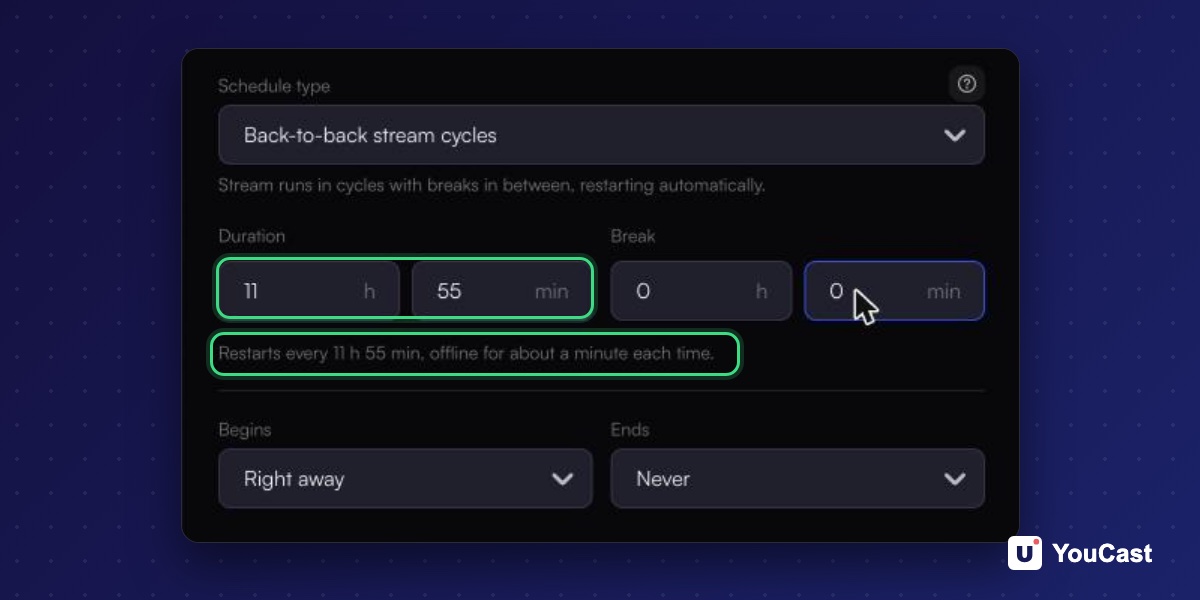
- 1Create a stream or edit an existing one and go to the Schedule step.
- 2Open Schedule type and choose Back-to-back stream cycles.
- 3Set Duration to 11 h and 55 min.
- 4Set Break to 0 h and 0 min.
- 5Leave Begins on Right away, or choose On a date for a specific start. Leave Ends on Never, or pick a date.
- 6Check the line under the fields. It should read: Restarts every 11 h 55 min, offline for about a minute each time.
- 7Press Create, or save the stream if you are editing it.
What Happens at Each Restart
With a zero break YouCast restarts the stream at the end of each cycle instead of stopping it. The stream is offline for about a minute, and each cycle becomes a separate broadcast on YouTube.
Each restart briefly interrupts the stream, so viewers see a gap of about a minute every 11 hours 55 minutes. If the exact moment matters, choose when the first cycle begins.
When to Add a Break
A break turns the pattern into on-air and off-air periods. With a duration of 4 hours and a break of 30 minutes the form says: Goes live every 4 h 30 min: 4 h on air, then 30 min off. Add a break only if you want the stream offline for that time.
- One cycle plus its break must last at least 15 minutes and at most 30 days.
- With a zero break the stream is restarted. With a break it stops for that time and then starts again.
Check It After the First Runs
Whether YouTube keeps a given broadcast is YouTube's decision, so check before you rely on it.
- 1After the first restart open YouTube Studio, then Content, then the Live tab.
- 2Check that the broadcasts appear as separate entries and that the earlier ones were archived.
- 3Shorten the Duration if you want shorter broadcasts.
Frequently asked questions
Why 11 hours 55 minutes and not 12 hours?
YouTube says streams under 12 hours are archived. A cycle of exactly 12 hours would not be under that mark, so YouCast's documentation uses 11 hours 55 minutes, five minutes below it.
Does the stream go offline at each restart?
Yes, for about a minute, and each cycle becomes a separate broadcast on YouTube.
Skip the Setup With YouCast
YouCast turns the videos you upload into a 24/7 live stream that runs from the cloud, to YouTube and, with a stream key, to Twitch, Kick and Instagram, so there is no encoder to configure, no computer to keep awake and no home upload line to saturate.
Choose Back-to-back stream cycles, set the duration to 11 hours 55 minutes with no break, and YouCast restarts the stream before the 12-hour mark. Each cycle is a separate broadcast.
You can try one stream on the free trial and add more streams as the channel grows.
Sources
- YouCast Docs: Scheduling — checked November 2026
- YouTube Help: Create a YouTube live stream with an encoder — checked November 2026
- YouTube Help: Archive live streams — checked November 2026
Further reading
- YouTube Help: Get started with live streaming — Official overview of live streaming on YouTube
- YouTube Help: Choose live encoder settings, bitrates, and resolutions — The ingestion settings table
- YouTube Help: YouTube Partner Program overview & eligibility — Thresholds and benefits
- YouTube Help: YouTube channel monetization policies — What reviewers check
Start Your 24/7 Stream Today
No PC needed. No OBS. Just upload your video and go live on YouTube — 24/7, from the cloud.