In short
YouTube says a live stream longer than 12 hours may not be archived and DVR may be limited. For a 24/7 stream, plan scheduled restarts with that mark in mind, and remember that a restart briefly interrupts the stream.
What YouTube Says
Two YouTube Help pages set a 12-hour mark for live streams. In short:
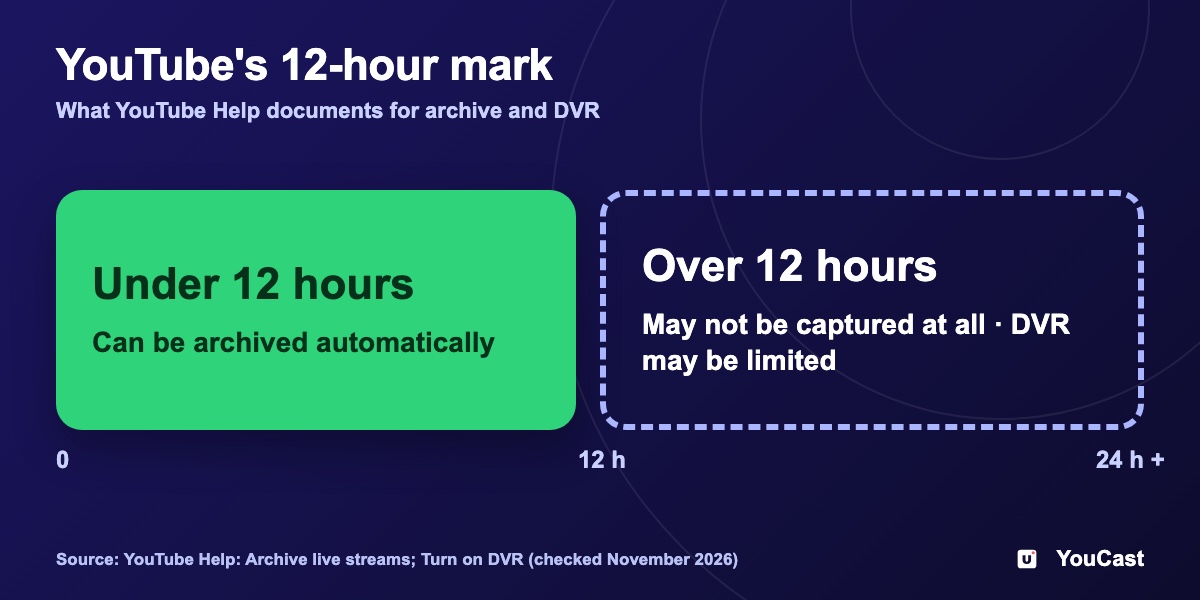
- Archive: a live stream shorter than 12 hours can be archived automatically. If a stream exceeds 12 hours, YouTube says it "may not be captured at all".
- DVR: the feature lets viewers pause and rewind during a live stream. For streams longer than 12 hours, DVR "may be limited or unavailable".
- Viewers can never rewind to before you went live.
- Viewing on Apple TV, Apple AirPlay or older app versions has lower DVR limits.
- Backup: YouTube recommends recording a local archive.
What YouTube Does Not Say
The help pages do not say what happens to a stream that passes 12 hours: whether part of it is saved, whether an archive appears later, or how rewinding behaves. We do not state anything beyond the wording above.
What It Means for a 24/7 Stream
A single continuous broadcast can run for days, so it falls outside the 12-hour range that YouTube describes for archives. In our reading, do not count on a replay of the whole run, and do not count on late viewers being able to rewind. That is our interpretation, not a YouTube statement.
If you rely on replays, for example to cut highlights or to let people catch up, the 12-hour mark is the number to plan around.
How to Plan Around It
A restart briefly interrupts the stream. Pick restart times with that in mind.
- 1Keep the original videos you upload. They are your source of truth, not the YouTube archive.
- 2Cut highlights and clips from your original video files instead of from the archive.
- 3Consider a restart schedule. In YouCast each auto-restart creates a new broadcast, so restarts more often than every 12 hours give you separate broadcasts that fall inside the range YouTube describes. That is our reading of the rule.
- 4After the first runs, open YouTube Studio, then Content, then the Live tab, and check what was archived before you rely on it.
Frequently asked questions
Is a 24/7 YouTube stream archived after 12 hours?
YouTube says a live stream longer than 12 hours may not be archived and DVR may be limited.
Does YouTube say exactly what happens at the 12-hour mark?
Only partly. The article separates what the two help pages say from what they do not say, so we avoid guessing beyond them.
How can I plan a 24/7 stream around the limit?
Use scheduled restarts and pick the restart times with the interruption in mind, because a restart briefly interrupts the stream.
Skip the Setup With YouCast
YouCast turns the videos you upload into a 24/7 live stream that runs from the cloud, to YouTube and, with a stream key, to Twitch, Kick and Instagram, so there is no encoder to configure, no computer to keep awake and no home upload line to saturate.
In YouCast you can set an auto-restart schedule, up to five restarts a day, so a 24/7 stream is split into separate broadcasts. Check one archive in YouTube Studio to confirm it behaves the way you expect.
You can try one stream on the free trial and add more streams as the channel grows.
Sources
- YouTube Help: Archive live streams — checked November 2026
- YouTube Help: Turn on DVR on live streams — checked November 2026
Further reading
- YouTube Help: Get started with live streaming — Official overview of live streaming on YouTube
- YouTube Help: Choose live encoder settings, bitrates, and resolutions — The ingestion settings table
- YouTube Help: YouTube Partner Program overview & eligibility — Thresholds and benefits
- YouTube Help: YouTube channel monetization policies — What reviewers check
Start Your 24/7 Stream Today
No PC needed. No OBS. Just upload your video and go live on YouTube — 24/7, from the cloud.