In short
Schedule times use your browser's time zone, and the schedule keeps its moments if you travel. Recurring schedules and cycles repeat at exact intervals, so they shift by one hour in local time when the clocks change. Open the stream and save the schedule again after the change.
Which Time Zone Does a Schedule Use?
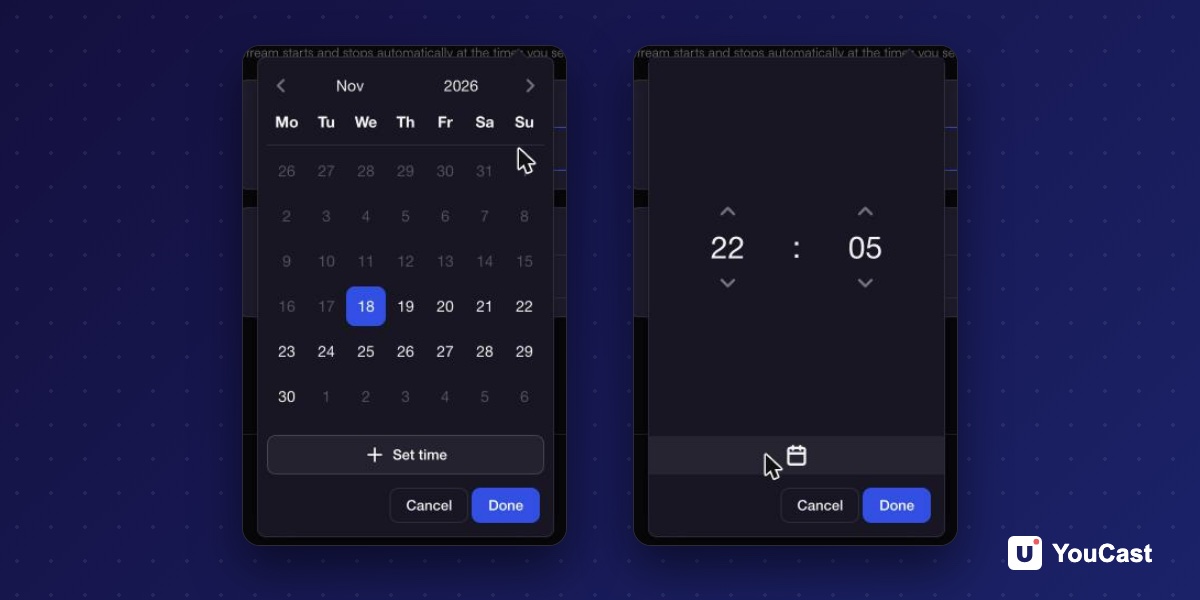
All dates and times in the Schedule step are in your browser's time zone, and upcoming runs are shown in your local time.
If you travel or change your computer's time zone, the schedule keeps running at the same moments. Only the times you see change.
What Happens When the Clocks Change
Recurring schedules and cycles repeat at an exact interval: 24 hours, 7 days or your cycle length. When the clocks change for daylight saving time, they shift by one hour in local time.
YouCast's advice is to open the stream and save the schedule again after the change. That brings it back to your usual time.
This applies to recurring schedules and cycles. A one-time schedule runs once, at the moment you picked.
How to Plan Around It
- 1Decide which time zone you want to think in, and set the schedule from a computer that uses it.
- 2Before you travel, remember that the stream keeps its moments while the times you see may differ.
- 3After a clock change, open each recurring or cycle stream and save it again.
- 4Open the form again and check the upcoming window it shows. It shows the next window, not the one you first entered.
Accurate to the Minute
YouCast checks schedules once a minute, so an action runs within a minute of its scheduled time. The stream status on your dashboard updates on its own when it does.
Frequently asked questions
Which time zone does the schedule use?
Your browser's time zone. If you travel or change your computer's time zone, the schedule keeps running at the same moments and only the displayed times change.
What should I do when the clocks change?
Open the stream and save the schedule again, because recurring schedules and cycles shift by one hour in local time.
Skip the Setup With YouCast
YouCast turns the videos you upload into a 24/7 live stream that runs from the cloud, to YouTube and, with a stream key, to Twitch, Kick and Instagram, so there is no encoder to configure, no computer to keep awake and no home upload line to saturate.
The schedule uses your browser's time zone. After a clock change, open your recurring and cycle streams in YouCast and save them again.
You can try one stream on the free trial and add more streams as the channel grows.
Sources
- YouCast Docs: Scheduling — checked November 2026
Further reading
- YouTube Help: Get started with live streaming — Official overview of live streaming on YouTube
- YouTube Help: Choose live encoder settings, bitrates, and resolutions — The ingestion settings table
- YouTube Help: YouTube Partner Program overview & eligibility — Thresholds and benefits
- YouTube Help: YouTube channel monetization policies — What reviewers check
Start Your 24/7 Stream Today
No PC needed. No OBS. Just upload your video and go live on YouTube — 24/7, from the cloud.