In short
YouCast scheduling starts, stops or restarts a stream at set times. The Schedule step of the stream form offers four types: manual control, a one-time schedule, a recurring daily or weekly window and back-to-back cycles. Each stream has its own schedule, every action checks the stream first, and times use your browser's time zone.
What Scheduling Does
Scheduling lets YouCast start, stop or restart a stream for you at set times, so you do not need to be at the dashboard. You set it in the last step of the stream form, Schedule. It is there when you create a stream and when you edit one, and every stream has its own schedule.
A schedule is optional. The default is no schedule, which means you start and stop the stream yourself.
The Four Schedule Types
The Schedule type list in the form has four options:
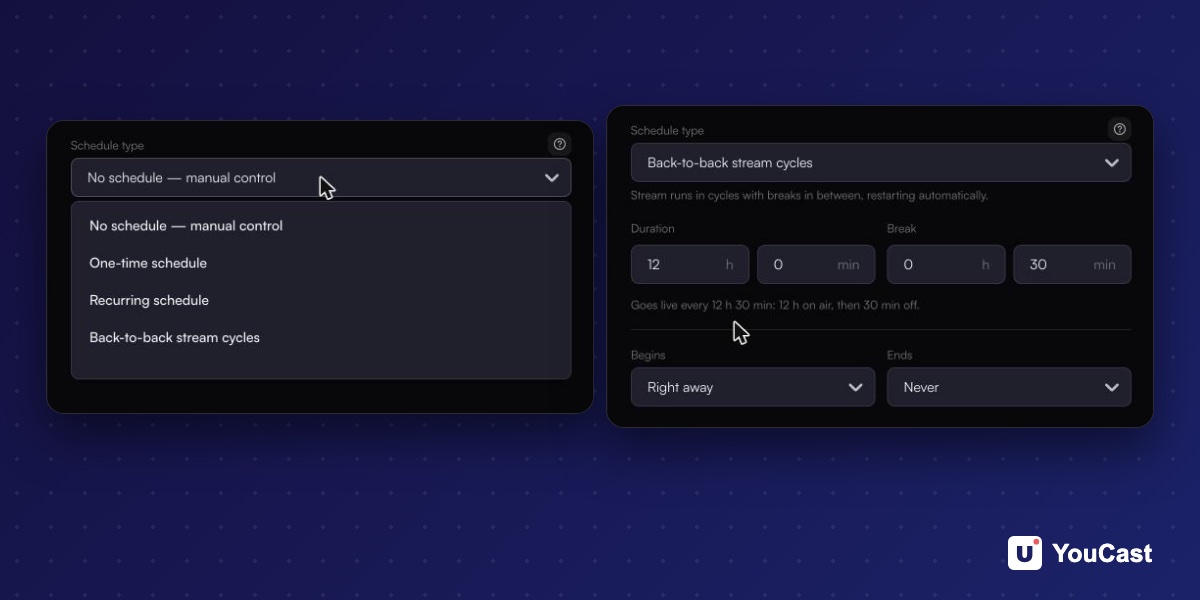
- No schedule, manual control: nothing runs automatically and you start and stop the stream yourself.
- One-time schedule: starts and/or stops the stream once, at the date and time you pick. Good for a premiere, an event or a single broadcast.
- Recurring schedule: starts and stops the stream in the same window every day or every week. Good for evening shows and weekly broadcasts.
- Back-to-back stream cycles: runs the stream for a set time, takes a break, then starts again, over and over. Good for splitting a 24/7 stream into separate broadcasts.
How to Set a Schedule
The dates and times in the Schedule step use your browser's time zone, and upcoming runs are shown in your local time.
- 1Open Streams and press New, or choose Edit stream on an existing stream.
- 2Go through Source, Videos, Details and Settings as usual. When you stream with a stream key there is no Settings step.
- 3On the Schedule step open Schedule type and pick one of the options.
- 4For a date and time, open the field, choose the day, press Set time, pick the hours and minutes and press Done.
- 5Press Create, or save the stream if you are editing it.
What Each Action Does
Every schedule is made of three kinds of actions. Each one checks the stream first, so it never does something that makes no sense:
- Start: if the stream is live nothing happens. If it is not live, the stream starts.
- Stop: if the stream is live it stops. If it is not live nothing happens.
- Restart: if the stream is live it stops and starts again about 60 seconds later. If it is not live nothing happens.
YouCast checks schedules once a minute, so an action runs within a minute of its set time.
Limits to Know
- Up to 20 scheduled actions per stream.
- Two actions of the same stream cannot be scheduled for the exact same time.
- Repeating intervals run from 15 minutes to 30 days.
- A schedule that would never run, for example one that ends before its first run, cannot be saved.
- You can edit the schedule of a stream while it is live.
- To turn scheduling off, choose No schedule, manual control and save. Deleting a stream also deletes its schedule.
Restart a YouTube Stream Every 11 h 55 min to Stay Under the 12-Hour Limit
The back-to-back cycle setting for a 24/7 stream.
Scheduled Stream Did Not Start? Causes and Fixes
Why a scheduled start can fail and how to turn it back on.
Time Zones and Daylight Saving Time for Scheduled Live Streams
What the schedule does when you travel or the clocks change.
Start Streaming with YouCast
Upload your videos once and stream them 24/7 from the cloud.
Frequently asked questions
Can I schedule only the start or only the stop of a stream?
Yes. In a one-time or recurring schedule, Start and Stop each have their own switch, and at least one of them must be on.
Can I change a schedule while the stream is live?
Yes. You can edit the schedule of a stream while it is live, and the new schedule replaces the old one.
Skip the Setup With YouCast
YouCast turns the videos you upload into a 24/7 live stream that runs from the cloud, to YouTube and, with a stream key, to Twitch, Kick and Instagram, so there is no encoder to configure, no computer to keep awake and no home upload line to saturate.
Pick a schedule type on the last step of the stream form: a one-time start and stop, a daily or weekly window, or back-to-back cycles. YouCast then starts, stops and restarts the stream for you.
You can try one stream on the free trial and add more streams as the channel grows.
Sources
- YouCast Docs: Scheduling — checked November 2026
Further reading
- YouTube Help: Get started with live streaming — Official overview of live streaming on YouTube
- YouTube Help: Choose live encoder settings, bitrates, and resolutions — The ingestion settings table
- YouTube Help: YouTube Partner Program overview & eligibility — Thresholds and benefits
- YouTube Help: YouTube channel monetization policies — What reviewers check
Start Your 24/7 Stream Today
No PC needed. No OBS. Just upload your video and go live on YouTube — 24/7, from the cloud.