In short
The November 2026 update adds scheduling to YouCast with four schedule types, plus saved stream keys when you create a stream, fixes for thumbnails and video re-encoding, and new guides in the blog. Open a stream and go to its Schedule step to try it.
What Is New
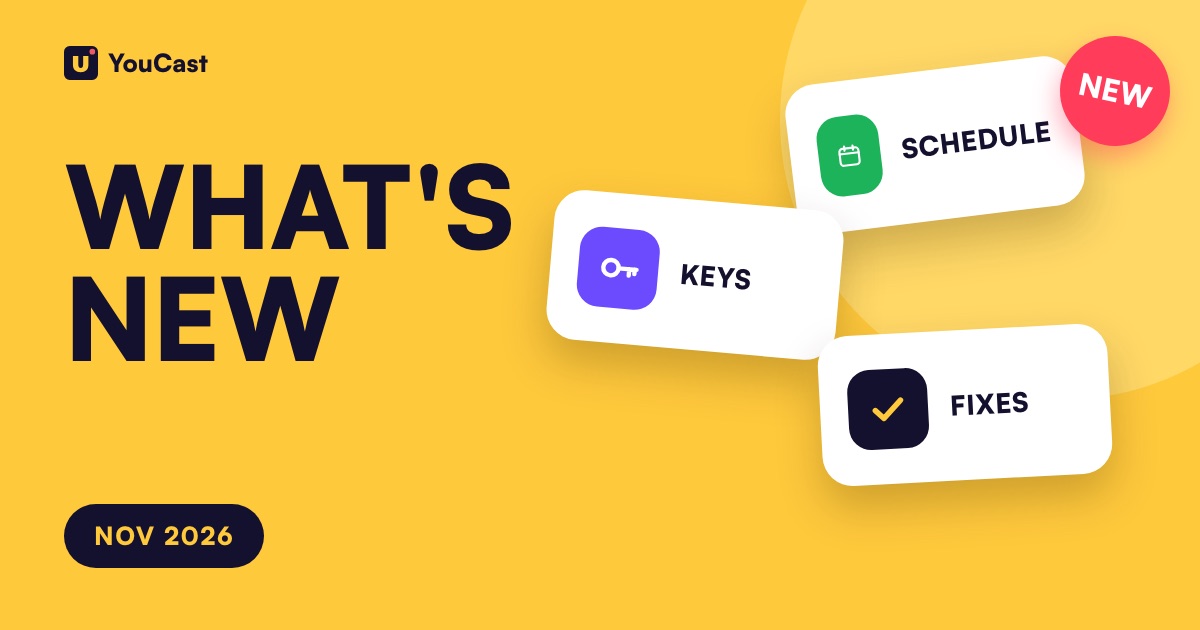
This update adds scheduling to YouCast, saves your stream keys, fixes errors with thumbnails and re-encoding and improves how the service works overall.
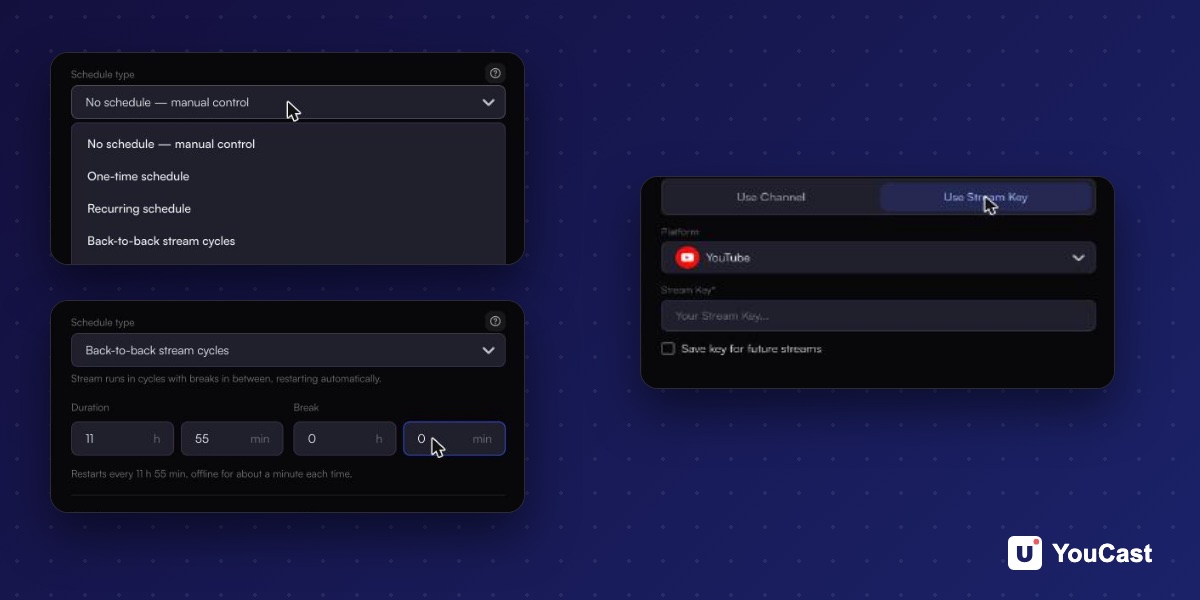
- Scheduling: automatic start, stop and restart, with four schedule types.
- Saved stream keys when you create a stream.
- Fixes for thumbnails and for video re-encoding.
- New guides in the blog.
Scheduling: Start, Stop and Restart on Their Own
The new Schedule step in the stream form lets you start, stop or restart a stream at set times. It has four modes:
- No schedule, manual control: nothing runs automatically and you start and stop the stream yourself.
- One-time schedule: starts and/or stops the stream once, at the date and time you pick. Good for a premiere, an event or a single broadcast.
- Recurring schedule: starts and stops the stream in the same window every day or every week. Good for evening shows and weekly broadcasts.
- Back-to-back stream cycles: runs the stream for a set time, takes a break, then starts again, over and over. Good for splitting a 24/7 stream into separate broadcasts.
Back-to-back cycles are the way to split a 24/7 stream into broadcasts shorter than YouTube's 12-hour archive mark. A cycle of 11 hours 55 minutes with no break restarts the stream before that mark.
Saved Stream Keys
When you create a stream with a stream key, the form has a Save key for future streams checkbox. Tick it and the key is saved, so you do not paste it again for your next stream. The platforms for stream keys are YouTube, Twitch and Kick.
Treat a stream key like a password. If it leaks, reset it on the platform.
Fixes
We fixed errors that could appear with thumbnails and with video re-encoding, and improved how the service works across the board.
How to Try the Update
- 1Open Streams and press New, or choose Edit stream on a stream you already have.
- 2On the last step, Schedule, choose a schedule type and set the times.
- 3To use a stream key, switch Source to Use Stream Key and tick Save key for future streams.
New Guides in the Blog
We also added many articles to the blog: practical guides for YouTube, Twitch and Kick, platform rules explained with sources, encoder and bitrate settings, monetization requirements and troubleshooting.
How to Schedule a 24/7 YouTube Stream
The four schedule types explained.
Restart a YouTube Stream Every 11 h 55 min
Stay under YouTube's 12-hour archive mark.
Stream to Twitch and Kick From the Cloud
Stream key setup and what the platforms say about recordings.
Start Streaming with YouCast
Upload your videos once and stream them 24/7 from the cloud.
What It Means for a YouCast Channel
YouCast turns the videos you upload into a 24/7 live stream that runs from the cloud, to YouTube and, with a stream key, to Twitch, Kick and Instagram, so there is no encoder to configure, no computer to keep awake and no home upload line to saturate.
Scheduling and saved stream keys are in the stream form now. Open a stream, go to the Schedule step and choose how it should start and stop.
You can try one stream on the free trial and add more streams as the channel grows.
Sources
- YouCast Docs: Scheduling — checked November 2026
Further reading
- YouTube Help: Get started with live streaming — Official overview of live streaming on YouTube
- YouTube Help: Choose live encoder settings, bitrates, and resolutions — The ingestion settings table
- YouTube Help: YouTube Partner Program overview & eligibility — Thresholds and benefits
- YouTube Help: YouTube channel monetization policies — What reviewers check
Start Your 24/7 Stream Today
No PC needed. No OBS. Just upload your video and go live on YouTube — 24/7, from the cloud.