In short
A scheduled start can fail when the stream has no videos, a video is still processing, the plan has no free stream of that quality or the YouTube channel needs reconnecting. YouCast then turns that action off. Edit the stream, fix the cause and save it to turn the schedule back on.
Why a Scheduled Start Can Fail
A scheduled start can fail when the stream cannot go live at that moment. The causes YouCast lists are:
- The stream has no videos.
- A video is still being processed.
- Your plan has no free stream of that quality.
- The YouTube channel needs to be reconnected.
What YouCast Does When It Fails
When a start fails, YouCast turns that action off so that it does not keep failing. The Schedule step of the stream then shows a warning that an action did not run and was turned off.
How to Fix It
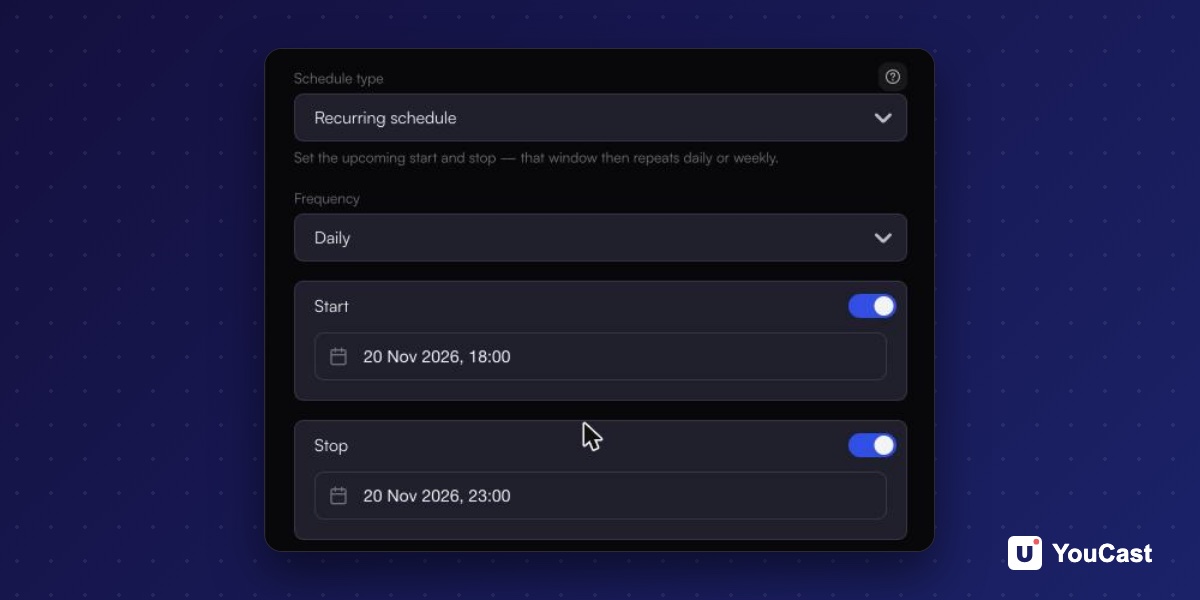
- 1Open the stream with Edit stream and go to the Schedule step. The warning shows which action did not run.
- 2Make sure the stream has processed videos.
- 3Make sure your plan has a free stream of that quality.
- 4Reconnect the YouTube channel if it needs it.
- 5Save the stream. Saving turns the schedule back on and calculates the next run again.
Other Things to Check
- Both times of a one-time schedule must be in the future, and the end must be after the start.
- A Start does nothing if the stream is already live, and a Stop does nothing if it is not live.
- Times use your browser's time zone, so check the time zone of the computer where you set the schedule.
- A schedule that was set up in a way the form cannot show appears as a custom schedule. It stays as it is unless you choose another schedule type, which replaces it.
Frequently asked questions
Why did my scheduled start turn itself off?
When a start cannot happen, for example because the stream has no videos or a video is still processing, YouCast turns that action off so that it does not keep failing.
How do I turn the schedule back on?
Edit the stream, fix the cause and save it. Saving turns the schedule back on and calculates the next run again.
Skip the Setup With YouCast
YouCast turns the videos you upload into a 24/7 live stream that runs from the cloud, to YouTube and, with a stream key, to Twitch, Kick and Instagram, so there is no encoder to configure, no computer to keep awake and no home upload line to saturate.
When a scheduled start fails, YouCast turns that action off. Edit the stream, fix the cause and save it, and the schedule turns back on.
You can try one stream on the free trial and add more streams as the channel grows.
Sources
- YouCast Docs: Scheduling — checked November 2026
Further reading
- YouTube Help: Get started with live streaming — Official overview of live streaming on YouTube
- YouTube Help: Choose live encoder settings, bitrates, and resolutions — The ingestion settings table
- YouTube Help: YouTube Partner Program overview & eligibility — Thresholds and benefits
- YouTube Help: YouTube channel monetization policies — What reviewers check
Start Your 24/7 Stream Today
No PC needed. No OBS. Just upload your video and go live on YouTube — 24/7, from the cloud.