In short
In YouCast, choose Use Stream Key, pick YouTube, Twitch or Kick, paste the key and optionally save it for future streams. Treat the key like a password. Twitch documents a Rerun label for recorded content, and KICK's help center lists pre-recorded content among the things to avoid for verification or Partner status.
When to Use a Stream Key
YouCast can stream to a YouTube channel you connect, or to a platform with a stream key. In the Create Stream form, Source has two tabs: Use Channel and Use Stream Key. With a stream key you pick the platform from a list: YouTube, Twitch or Kick.
Set It Up
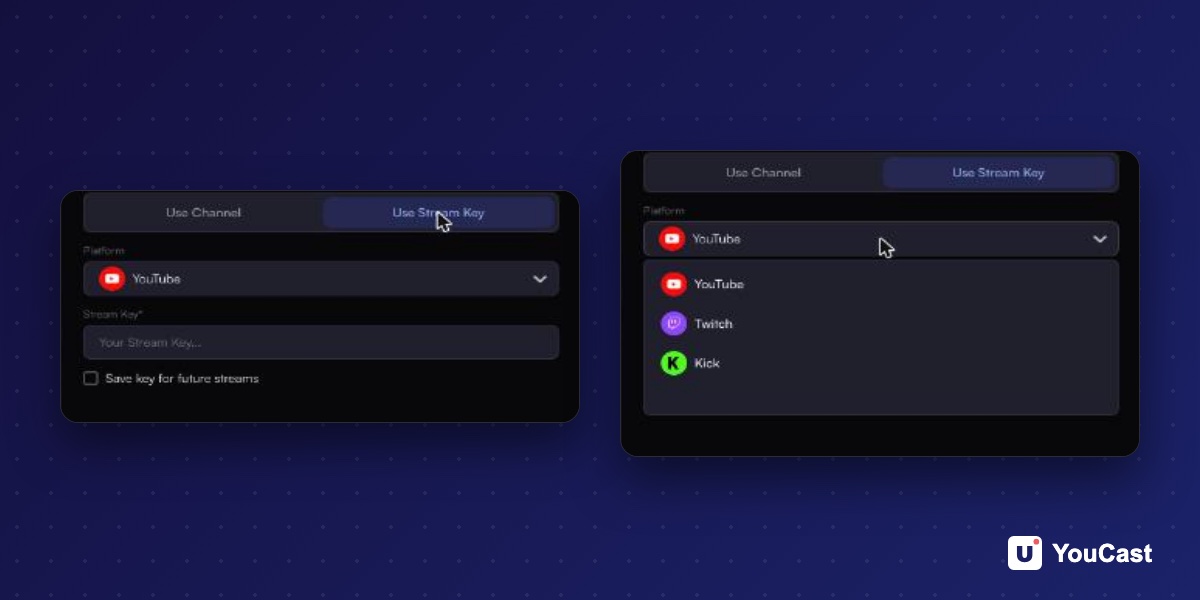
- 1Open Streams, press New and choose Use Stream Key.
- 2Pick the platform: YouTube, Twitch or Kick.
- 3Paste your stream key.
- 4Tick Save key for future streams if you want to reuse it.
- 5Go through Videos, Details and Schedule. With a stream key the form has four steps, because the Settings step is skipped.
- 6Create the stream and start it.
Where to Find the Key
- Twitch: Creator Dashboard, then Settings, then Stream. Twitch says never to share the key or show it on stream.
- Kick: copy it from Channel, then Stream URL and Key. KICK says it does not save the old key, so copy the new one after a reset.
- YouTube: in the Live Control Room in YouTube Studio.
Keep the Key Private
A stream key identifies your stream when it enters the platform, so treat it like a password. Twitch advises against sharing it, and says that refreshing the key changes it for yourself only. If a key leaks, reset it on the platform and update the stream.
Pre-Recorded Content: What the Platforms Say
Twitch documents a way to show recorded material: tick the Rerun box in Edit Stream Info and start the stream title and the go-live notification with [Rerun]. KICK's help center lists pre-recorded content among the things to avoid to get verified or keep Partner status. The page does not say that pre-recorded streams are banned.
Do not present a recording as live. Say so in the title or description.
Twitch Stream Key: Where to Find It, Reset It and Guest Keys
The Twitch help page explained.
Kick Lists Pre-Recorded Streams as a Reason to Refuse Verification: What It Means for 24/7 Channels
What KICK says about recordings.
Start Streaming with YouCast
Upload your videos once and stream them 24/7 from the cloud.
Frequently asked questions
Which platforms can I choose with a stream key?
YouTube, Twitch and Kick.
Can I reuse the stream key?
Yes. Tick Save key for future streams when you create the stream.
Skip the Setup With YouCast
YouCast turns the videos you upload into a 24/7 live stream that runs from the cloud, to YouTube and, with a stream key, to Twitch, Kick and Instagram, so there is no encoder to configure, no computer to keep awake and no home upload line to saturate.
In YouCast choose Use Stream Key, pick Twitch or Kick, paste the key and tick Save key for future streams. If the platform asks for it, say in the title that the content is recorded.
You can try one stream on the free trial and add more streams as the channel grows.
Sources
- Twitch Help: Twitch Stream Key FAQ — checked November 2026
- KICK Help Center: OBS or Streamlabs not connecting to KICK — checked November 2026
- KICK Help Center: Grounds for verification and/or Kick Partner Program refusal/removal — checked November 2026
- Twitch Help: On-Demand Content on Twitch — checked November 2026
- YouCast Docs: Scheduling — checked November 2026
Further reading
- Twitch Help: Broadcasting Guidelines — Official broadcast rules
- Twitch Help: Twitch Partner Program Overview — Partner requirements and benefits
- Twitch Help: Joining the Affiliate Program — Affiliate requirements
- Twitch Help: Simulcasting Guidelines FAQ — Multistream rules
Start Your 24/7 Stream Today
No PC needed. No OBS. Just upload your video and go live on YouTube — 24/7, from the cloud.