What Latency Is
Stream latency is the delay between your camera capturing an event and viewers seeing it. YouTube explains the trade-off: the lower the latency, the less read-ahead buffer the player has, and the more likely viewers are to feel problems between the encoder and the player.
The Three Options
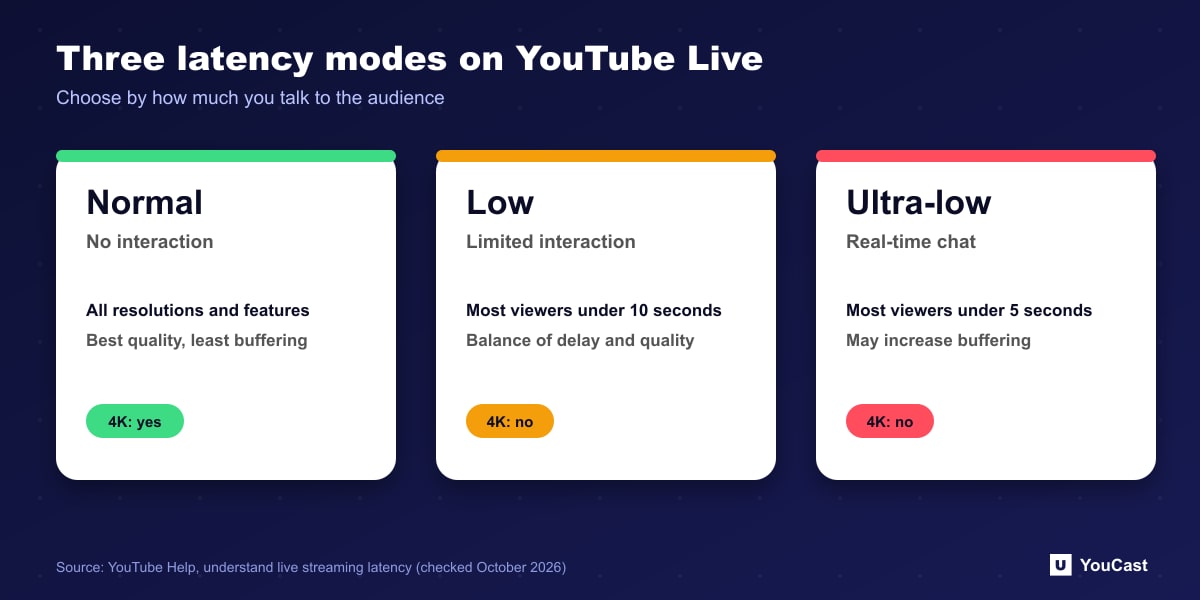
Webcam and mobile streaming are always set up for interactivity, so you cannot choose a latency for them.
- Normal latency: for streams where you do not interact with the audience. It is the highest quality setting for viewers, with the lowest amount of viewer buffering, and it supports all resolutions and live features.
- Low latency: for limited interaction, such as polls where you do not need to wait for answers. Most viewers see latency under 10 seconds, and 4K is not supported.
- Ultra-low latency: for real-time conversation. Most viewers see latency under 5 seconds, it may increase buffering, and 4K is not supported.
Which to Pick for 24/7
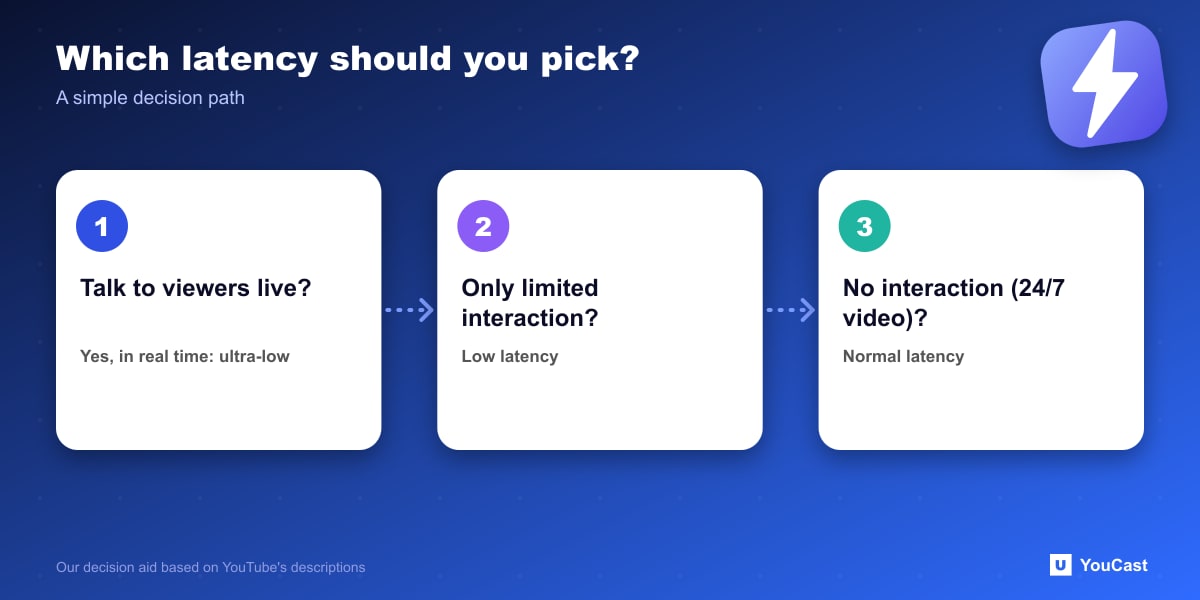
A stream of pre-recorded video where nobody is talking to the audience in real time fits YouTube's description of normal latency. The delay does not matter, and you keep the best viewer experience and every feature, including 4K.
If you do choose ultra-low latency, YouTube warns that ingestion issues on your network affect viewers more, and recommends AV1 or HEVC for the best quality and stability at any bitrate.
Let the Cloud Handle the Encoding
YouCast turns the videos you upload into a 24/7 live stream that runs from the cloud, to YouTube and, with a stream key, to Twitch, Kick and Instagram, so there is no encoder to configure, no computer to keep awake and no home upload line to saturate.
A pre-recorded 24/7 stream fits normal latency, the setting with the best quality and the most features. That is the kind of stream YouCast runs.
You can try one stream on the free trial and add more streams as the channel grows.
Sources
- YouTube Help: Understand live streaming latency — checked October 2026
Further reading
- YouTube Help: Get started with live streaming — Official overview of live streaming on YouTube
- YouTube Help: Choose live encoder settings, bitrates, and resolutions — The ingestion settings table
- YouTube Help: YouTube Partner Program overview & eligibility — Thresholds and benefits
- YouTube Help: YouTube channel monetization policies — What reviewers check
Start Your 24/7 Stream Today
No PC needed. No OBS. Just upload your video and go live on YouTube — 24/7, from the cloud.