The Bitrate Table
YouTube publishes recommended bitrate ranges based on codec, resolution and frame rate. These are the figures for standard dynamic range (SDR), in megabits per second.
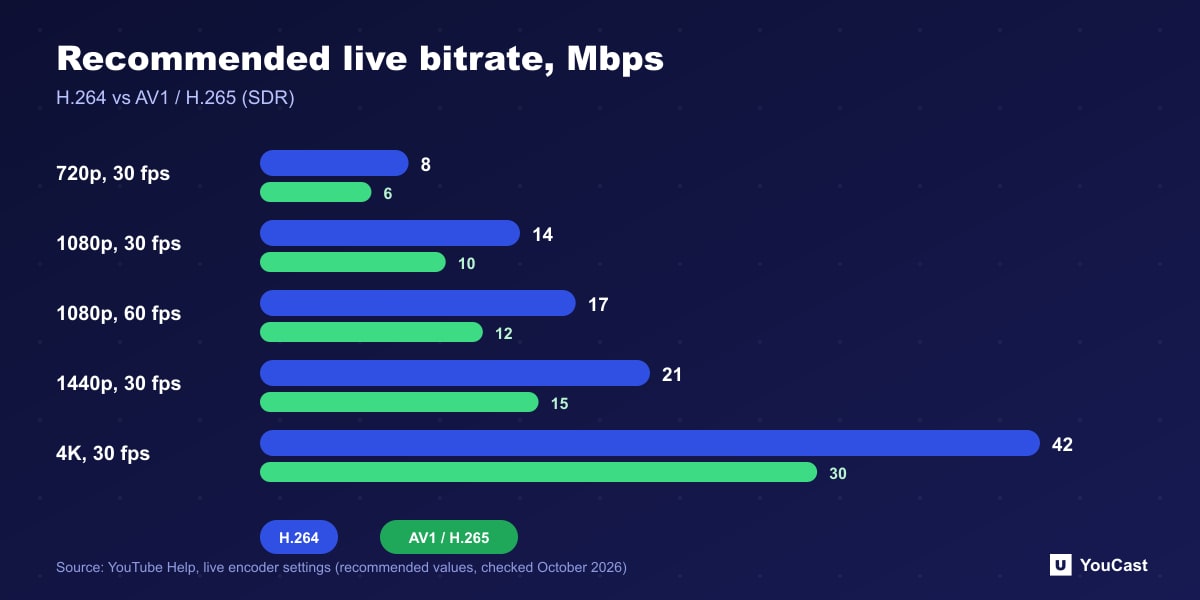
The newer codecs reach similar quality at lower bitrates. In YouTube's table the recommended AV1 or H.265 figure is lower than the H.264 one at every resolution.
- 1080p at 30 fps: H.264 minimum 5, recommended 14; AV1 or H.265 minimum 4, recommended 10.
- 1080p at 60 fps: H.264 minimum 6, recommended 17; AV1 or H.265 minimum 4, recommended 12.
- 720p at 30 or 60 fps: H.264 minimum 3, recommended 8; AV1 or H.265 minimum 2, recommended 6.
- 1440p at 30 fps: H.264 minimum 7, recommended 21; AV1 or H.265 minimum 5, recommended 15.
- 4K at 30 fps: H.264 minimum 11, recommended 42; AV1 or H.265 minimum 8, recommended 30.
- 480p and 360p at 30 fps: H.264 minimum 0.4, recommended 4; AV1 or H.265 minimum 0.3, recommended 3.
The Other Settings YouTube Lists
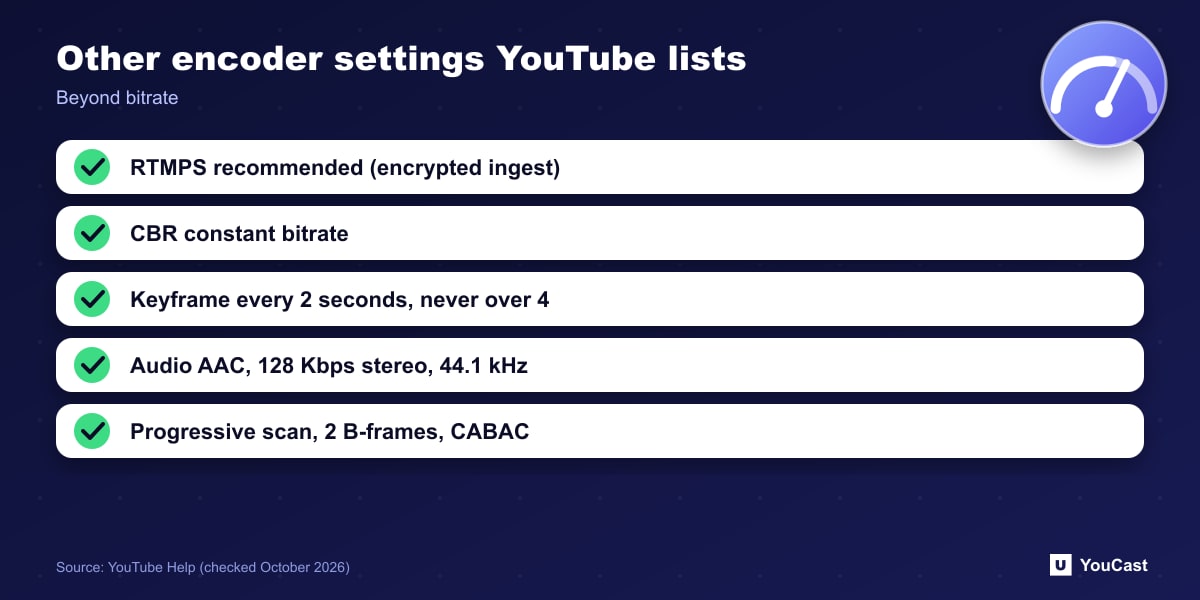
- Protocol: RTMP or RTMPS, and YouTube recommends RTMPS, which encrypts data into and through its servers.
- Video codecs: H.264, H.265 (HEVC) and AV1, at up to 60 fps.
- Keyframe frequency: recommended 2 seconds, and do not exceed 4 seconds.
- Bitrate encoding: CBR (constant bitrate).
- Audio: AAC or MP3, 128 Kbps for stereo, 44.1 kHz sample rate for stereo (48 kHz for 5.1 surround).
- Recommended advanced settings include progressive scan, 2 B-frames, 1 reference frame and CABAC entropy coding.
What to Take From It
The figures are for live ingestion, the video you send to YouTube. They are a reason not to set the bitrate arbitrarily high: more is not automatically better, and a bitrate your connection cannot sustain causes problems for viewers.
If you stream from the cloud, the encoding and upload happen on the server, so your home connection does not have to carry the bitrate. If you stream from your own machine, the next article shows what the numbers mean for your upload speed and data use over a month.
Let the Cloud Handle the Encoding
YouCast turns the videos you upload into a 24/7 live stream that runs from the cloud, to YouTube and, with a stream key, to Twitch, Kick and Instagram, so there is no encoder to configure, no computer to keep awake and no home upload line to saturate.
In YouCast you do not set bitrate, keyframes or codecs yourself: you upload the video and choose an HD, 2K or 4K stream option, and the streaming side is handled for you.
You can try one stream on the free trial and add more streams as the channel grows.
Sources
- YouTube Help: Choose live encoder settings, bitrates, and resolutions — checked October 2026
Further reading
- YouTube Help: Get started with live streaming — Official overview of live streaming on YouTube
- YouTube Help: YouTube Partner Program overview & eligibility — Thresholds and benefits
- YouTube Help: YouTube channel monetization policies — What reviewers check
- YouTube Help: Advertiser-friendly content guidelines — What can earn ad revenue
Start Your 24/7 Stream Today
No PC needed. No OBS. Just upload your video and go live on YouTube — 24/7, from the cloud.