Step 1: The Encoder Will Not Start
If your third-party encoder shows an error at start-up, YouTube's fix is to get a new stream key in the Live Control Room and update the encoder. If the software logs into YouTube without a stream key, contact that software's support team: it may need an update to work with YouTube Live.
Step 2: Who Is Reporting Errors
YouTube says the number of viewers reporting errors points to the cause, and you can see that number in your live stream metrics.
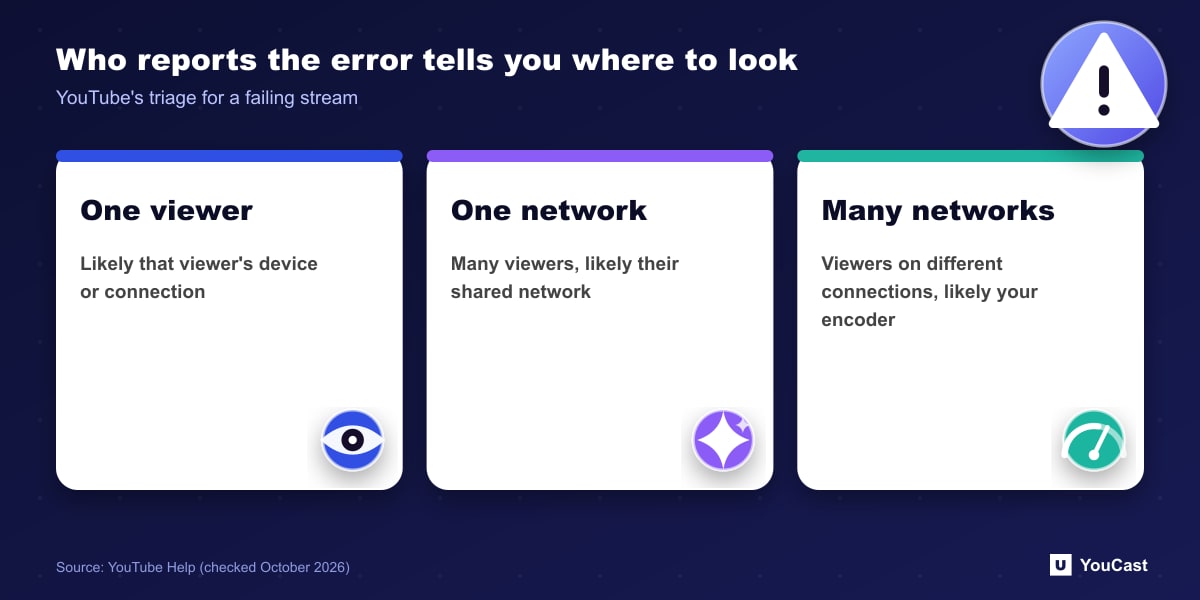
- One viewer reports an error: probably a problem with that viewer's computer or connection.
- Many viewers on one internet connection: probably the shared network. They need capacity for multiple streams, so 10 users watching 10 streams requires 10 times the inbound speed.
- Many viewers on different connections: probably your encoder.
Step 3: Check the Encoder
Use the latest version of your encoder software and check how the stream looks and sounds directly inside it. If it looks or sounds bad there, the problem is in the audio and video sources feeding the encoder. YouTube suggests looking at encoder errors on the dashboard, the CPU load on the encoder and the local archive file, or trying a different encoder.
If the stream looks and sounds healthy in the encoder, the likely culprit is your outbound connection. Run a speed test and contact your internet provider if it shows problems.
Step 4: Report It
If problems continue, YouTube asks you to report them to its team. Before that, compare the Live Control Room error message with the list in our guide to live error messages, since many messages name the exact setting to change.
Skip the Setup With YouCast
YouCast turns the videos you upload into a 24/7 live stream that runs from the cloud, to YouTube and, with a stream key, to Twitch, Kick and Instagram, so there is no encoder to configure, no computer to keep awake and no home upload line to saturate.
Several of the checks above, encoder version, CPU load and home upload speed, disappear with a cloud stream. In YouCast an auto-restart schedule brings a dropped stream back on its own.
You can try one stream on the free trial and add more streams as the channel grows.
Sources
- YouTube Help: Troubleshoot your YouTube live stream — checked October 2026
- YouTube Help: Live streaming error messages — checked October 2026
Further reading
- YouTube Help: Get started with live streaming — Official overview of live streaming on YouTube
- YouTube Help: Choose live encoder settings, bitrates, and resolutions — The ingestion settings table
- YouTube Help: YouTube Partner Program overview & eligibility — Thresholds and benefits
- YouTube Help: YouTube channel monetization policies — What reviewers check
Start Your 24/7 Stream Today
No PC needed. No OBS. Just upload your video and go live on YouTube — 24/7, from the cloud.