What the Guidelines Cover
Twitch defines simulcasting, or multistreaming, as broadcasting the same stream to multiple platforms at once. Its guidelines are part of the Terms of Service and apply to all streamers unless you have an agreement with Twitch that requires exclusivity. If you do not adhere, Twitch says it will send a warning before taking any enforcement action.
What You Can and Cannot Do
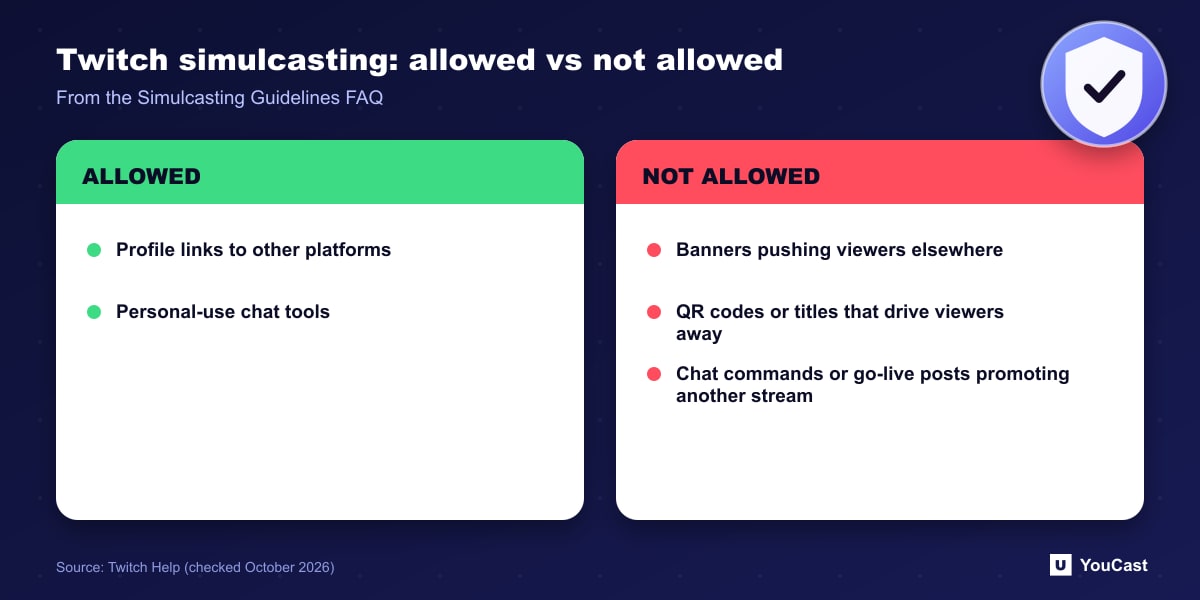
- Allowed: links to social media profiles, including live streaming platforms, in your bio or panels.
- Not allowed: using your bio or panels to actively promote other live platforms, for example large banners encouraging viewers to watch elsewhere.
- Not allowed: using Twitch to drive viewers to a concurrent stream through links, banners, QR codes, titles, go-live notifications or chat commands.
- Allowed: personal-use tools that combine activity such as chat from several platforms.
Quality Parity
Twitch gives an example of a degraded experience: shrinking or otherwise degrading video quality on Twitch so it is worse than on other platforms would not meet the guidelines.
Partners who left Twitch and notified it of their intent to stream elsewhere, without violating their agreement, can ask Support whether they qualify to reinstate their Partner status.
A Practical Setup
Our reading: stream the same quality to every destination, keep your titles and chat commands neutral about where else you are live, and put platform links in the standard profile area. For upload planning, YouTube suggests budgeting 1.5 to 2 times your combined bitrate.
Skip the Setup With YouCast
YouCast turns the videos you upload into a 24/7 live stream that runs from the cloud, to YouTube and, with a stream key, to Twitch, Kick and Instagram, so there is no encoder to configure, no computer to keep awake and no home upload line to saturate.
To stream the same content to several platforms with YouCast, create a stream for each destination with its own key, and follow each platform's rules on how you promote the others.
You can try one stream on the free trial and add more streams as the channel grows.
Sources
- Twitch Help: Simulcasting Guidelines FAQ — checked October 2026
Further reading
- Twitch Help: Broadcasting Guidelines — Official broadcast rules
- Twitch Help: Twitch Partner Program Overview — Partner requirements and benefits
- Twitch Help: Joining the Affiliate Program — Affiliate requirements
- YouTube Help: Get started with live streaming — Official overview of live streaming on YouTube
Start Your 24/7 Stream Today
No PC needed. No OBS. Just upload your video and go live on YouTube — 24/7, from the cloud.