What 5.1 Means on YouTube
YouTube explains that 5.1 surround uses five full-bandwidth channels, which are front left, center, front right, surround left and surround right, plus one low-frequency effects channel for a subwoofer. Viewers need compatible devices to hear it.
Only ingestion with mono, stereo or 5.1 audio is supported. Other channel layouts may convert to stereo unreliably.
Create the Stream Key
- 1Open Live Control Room from YouTube Studio via Create, then Go live.
- 2Open the Stream Key drop-down and choose Create new Stream Key.
- 3Enter a name and the protocol, and keep Turn on manual settings under Stream resolution unchecked.
- 4Click Create. The system detects 5.1 input automatically and produces 5.1 output.
Encoder Settings for 5.1
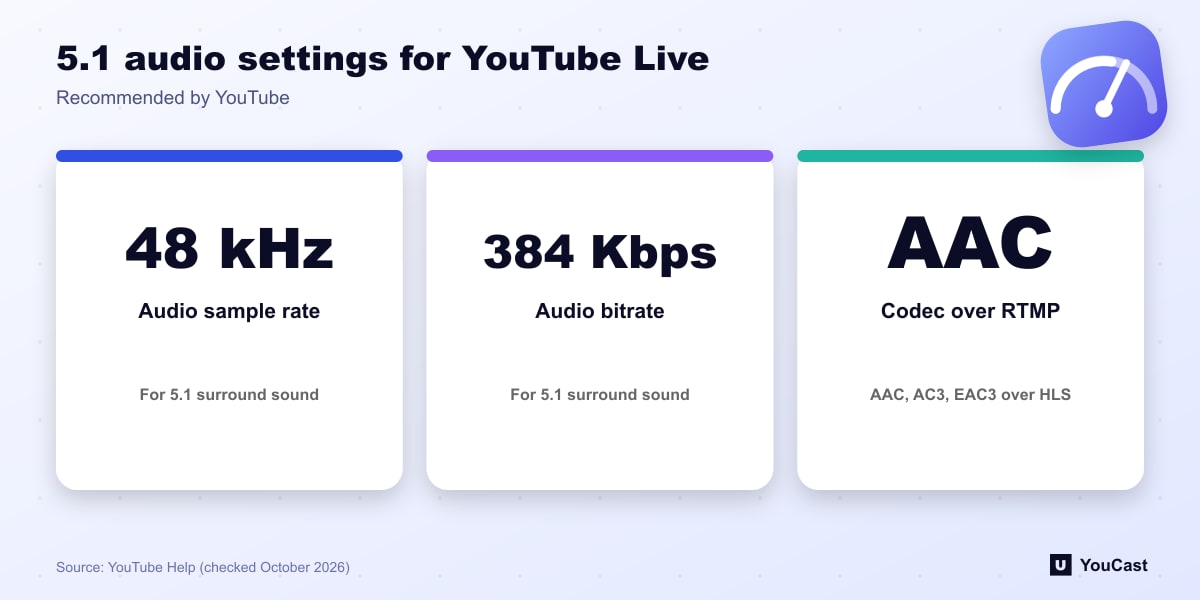
Known Compatible Encoders
YouTube lists these as known compatible and says more will be added as they are tested: software encoders Avermedia RECentral 4, AWS Elemental Live and OBS, and the hardware encoder Videon EdgeCaster. The general encoder settings guidelines still apply on top of the audio settings.
Let the Cloud Handle the Encoding
YouCast turns the videos you upload into a 24/7 live stream that runs from the cloud, to YouTube and, with a stream key, to Twitch, Kick and Instagram, so there is no encoder to configure, no computer to keep awake and no home upload line to saturate.
Surround sound needs matching encoder settings. If your 24/7 stream is stereo music or ambience, YouCast needs nothing beyond the video you upload.
You can try one stream on the free trial and add more streams as the channel grows.
Sources
- YouTube Help: Stream 5.1 surround sound audio on YouTube — checked October 2026
- YouTube Help: Set up an HLS stream — checked October 2026
Further reading
- YouTube Help: Get started with live streaming — Official overview of live streaming on YouTube
- YouTube Help: Choose live encoder settings, bitrates, and resolutions — The ingestion settings table
- YouTube Help: YouTube Partner Program overview & eligibility — Thresholds and benefits
- YouTube Help: YouTube channel monetization policies — What reviewers check
Start Your 24/7 Stream Today
No PC needed. No OBS. Just upload your video and go live on YouTube — 24/7, from the cloud.