Why Use HLS Instead of RTMP
YouTube says you can stream HDR or use codecs that RTMP does not support by using HLS (HTTP Live Streaming) ingestion. You need an encoder that supports HLS and basic familiarity with live streaming on YouTube.
The trade-off is latency: the page says HLS has higher latency because it sends segments of video instead of a continuous stream, and the Ultra low-latency option is turned off when HLS is chosen.
Set Up the HLS Key and URL
- 1If your encoder has a YouTube HLS preset, select it and paste your stream key as with RTMP.
- 2Otherwise go to the Live Control Room Stream tab, under Select stream key click Create new stream key and choose HLS as the protocol.
- 3To stream in HDR, leave Turn on manual resolution unchecked.
- 4Copy the stream URL (it starts with https, not rtmp) into your encoder. The key is already part of the URL, and a backup server URL is provided if you need one.
The Required HLS Settings
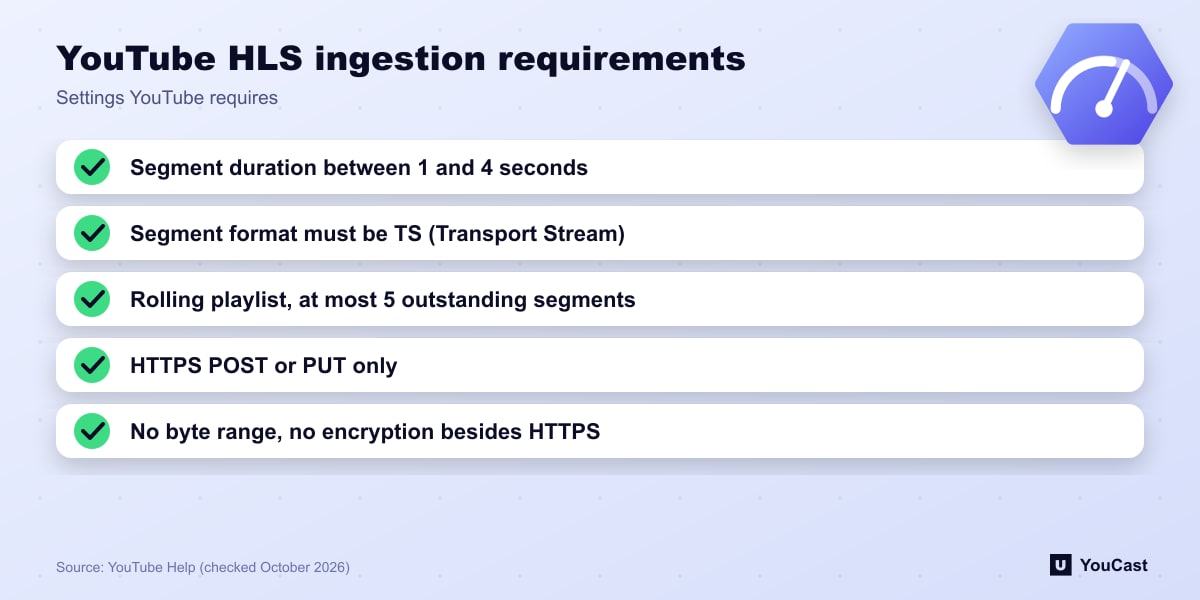
- Segment duration: between 1 and 4 seconds. A lower duration results in lower latency.
- Segment format: must be TS (Transport Stream). Byte range is not supported.
- A rolling playlist with no more than 5 outstanding segments.
- HTTPS POST or PUT. No encryption is supported besides HTTPS.
Codecs and Advanced Settings
Video codec: HEVC is supported in addition to H.264. Audio codec: AAC, AC3 and EAC3. YouTube's recommended advanced settings are a 44.1 kHz sample rate and 128 Kbps for stereo, and 48 kHz with 384 Kbps for 5.1 surround. Encoders the page lists as supporting HLS output include Cobalt, Harmonic, Mirillis Action, OBS and Telestream, and Mirillis Action automatically uses HLS if you choose HEVC.
Let the Cloud Handle the Encoding
YouCast turns the videos you upload into a 24/7 live stream that runs from the cloud, to YouTube and, with a stream key, to Twitch, Kick and Instagram, so there is no encoder to configure, no computer to keep awake and no home upload line to saturate.
HLS settings matter only if you run your own encoder. YouCast sends your uploaded video to YouTube for you.
You can try one stream on the free trial and add more streams as the channel grows.
Sources
- YouTube Help: Set up an HLS stream — checked October 2026
Further reading
- YouTube Help: Get started with live streaming — Official overview of live streaming on YouTube
- YouTube Help: Choose live encoder settings, bitrates, and resolutions — The ingestion settings table
- YouTube Help: YouTube Partner Program overview & eligibility — Thresholds and benefits
- YouTube Help: YouTube channel monetization policies — What reviewers check
Start Your 24/7 Stream Today
No PC needed. No OBS. Just upload your video and go live on YouTube — 24/7, from the cloud.