Network: Leave 20% Spare
YouTube's tips page says the total bitrate you stream cannot exceed your available upload bandwidth, and recommends leaving about 20% of room. If you also send a backup stream, count it: primary plus backup plus 20% is the recommended total.
It also warns that a fast office connection may be shared, so your individual connection can be much slower, and that download speed is often greater than upload speed. Run a speed test and check the outbound number.
Example from the numbers above: a 6 Mbps stream with a 6 Mbps backup is 12 Mbps. Adding 20% gives about 14.4 Mbps of upload you should have available. The arithmetic is ours.
Timing: Set Up Early, Start Early
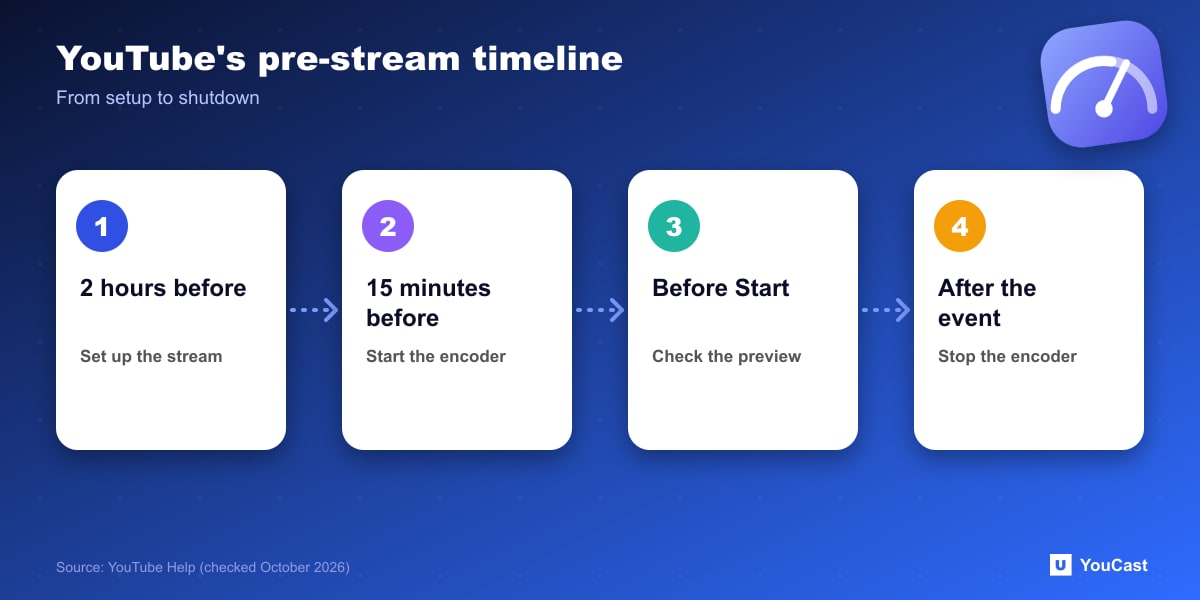
- Set up the stream in YouTube at least 2 hours in advance.
- Start the encoder at least 15 minutes before the scheduled start.
- Check the preview in the Live Control Room before clicking Start Streaming.
Verification: Backup, Archive, Devices
- Test failover: stop the primary encoder (or unplug its Ethernet cable) and check that the player rolls over to the backup.
- Check the local archive file: its size should keep growing during the stream.
- Check that the event shows up on your channel and watch pages, and on mobile.
- Watch audio and video quality continuously.
- When the event has ended on YouTube, stop the encoder.
Safety Basics
YouTube advises care with personal information on stream and in live chat, giving channel admin access only to people you trust, and noting that YouTube will not ask you for moderation privileges. For personal streams it suggests private or unlisted visibility, and the same rules for content apply to live chat.
Skip the Setup With YouCast
YouCast turns the videos you upload into a 24/7 live stream that runs from the cloud, to YouTube and, with a stream key, to Twitch, Kick and Instagram, so there is no encoder to configure, no computer to keep awake and no home upload line to saturate.
The headroom, backup encoder and local checks above are for streaming from your own machine. A cloud stream from YouCast runs from a data center, so your home bandwidth is not part of the plan.
You can try one stream on the free trial and add more streams as the channel grows.
Sources
- YouTube Help: Streaming tips — checked October 2026
Further reading
- YouTube Help: Get started with live streaming — Official overview of live streaming on YouTube
- YouTube Help: Choose live encoder settings, bitrates, and resolutions — The ingestion settings table
- YouTube Help: YouTube Partner Program overview & eligibility — Thresholds and benefits
- YouTube Help: YouTube channel monetization policies — What reviewers check
Start Your 24/7 Stream Today
No PC needed. No OBS. Just upload your video and go live on YouTube — 24/7, from the cloud.