In short
Live Redirect sends the viewers of your live stream to a Premiere or to another channel’s live stream when yours ends. Set up the Premiere before the live stream, tell viewers to wait a few seconds for the screen to reload and pin a chat message pointing to it. Eligibility and the steps are in the article.
What Live Redirect Does
Live Redirect sends the viewers of your live stream to a Premiere, or to another channel's live stream, when your stream or Premiere ends. Viewers move over automatically.
Who Can Use It
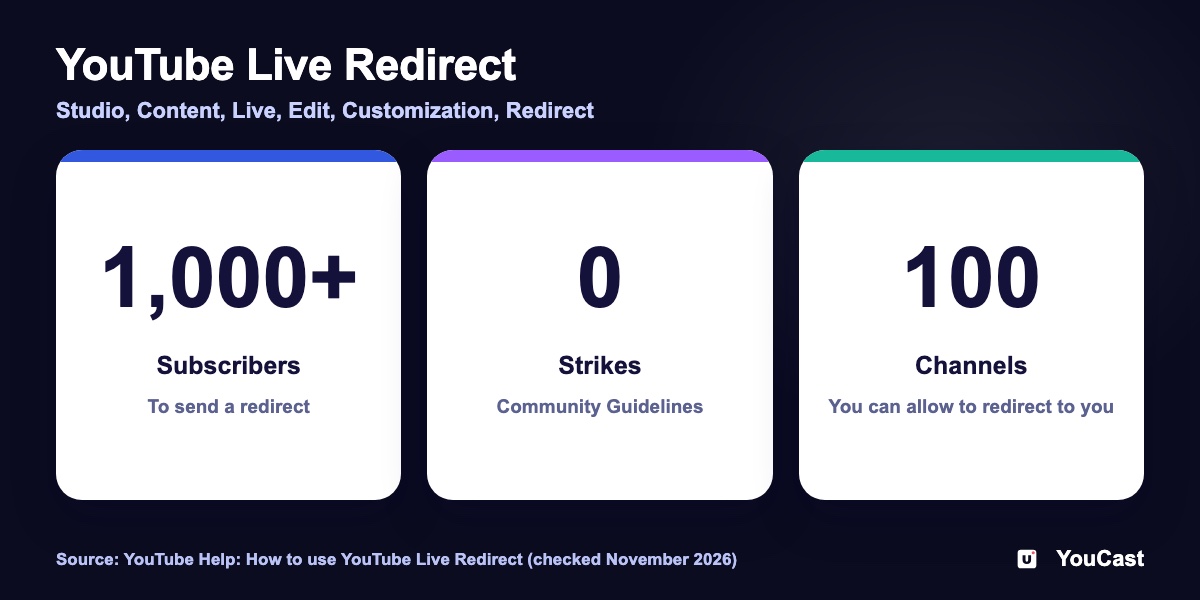
- The channel that sends the redirect needs more than 1,000 subscribers and no Community Guidelines strikes.
- Redirecting to another channel's live stream needs that channel's permission in YouTube Studio.
- Who may redirect to you is set under Settings, then Community. Channels you subscribe to is the default unless your subscriptions are private. You can also allow all channels, or up to 100 specific channels.
How to Set It Up
YouTube's tips: set up the Premiere before the live stream, tell viewers to wait a few seconds for their screen to reload, and pin a chat message on the Premiere that points back to your live stream.
- 1In YouTube Studio open Content, then the Live tab.
- 2Hover over the stream and choose Edit.
- 3Open Customization and click Add under Redirect.
- 4Choose a Premiere or search for another channel's live stream.
When It Fits a 24/7 Channel
In our reading, which is not a YouTube statement, a 24/7 stream can feed its viewers into a Premiere of a new video, so the audience that is already watching sees the release. Keep in mind that Premieres do not support output above 1080p.
YouTube Premiere vs Live Stream: Which One for a Pre-Recorded Video?
What each format does.
How to Promote a YouTube Live Stream: Before, During and After
More ways to bring viewers in.
How to Grow from 0 to 10,000 Subscribers with 24/7 Streaming
The growth guide.
Start Streaming with YouCast
Upload your videos once and stream them 24/7 from the cloud.
Frequently asked questions
What does Live Redirect do?
It sends the viewers of your live stream to a Premiere or to another channel’s live stream when your stream ends.
What does YouTube advise before using it?
Set up the Premiere before the live stream, tell viewers to wait a few seconds for their screen to reload and pin a chat message on the Premiere that points viewers to it.
Who can use Live Redirect?
The article has a section on who can use it and where to set it in YouTube Studio. Check eligibility on YouTube’s current help page.
Run the Stream, Spend Time on Growth
YouCast turns the videos you upload into a 24/7 live stream that runs from the cloud, to YouTube and, with a stream key, to Twitch, Kick and Instagram, so there is no encoder to configure, no computer to keep awake and no home upload line to saturate.
Live Redirect is set in YouTube Studio, on the live stream that YouCast creates for your channel. After a restart YouCast creates a new broadcast, so check that the redirect is still set.
You can try one stream on the free trial and add more streams as the channel grows.
Sources
- YouTube Help: How to use YouTube Live Redirect — checked November 2026
- YouTube Help: Premieres on YouTube — checked November 2026
Further reading
- YouTube Help: Get started with live streaming — Official overview of live streaming on YouTube
- YouTube Help: Choose live encoder settings, bitrates, and resolutions — The ingestion settings table
- YouTube Help: YouTube Partner Program overview & eligibility — Thresholds and benefits
- YouTube Help: YouTube channel monetization policies — What reviewers check
Start Your 24/7 Stream Today
No PC needed. No OBS. Just upload your video and go live on YouTube — 24/7, from the cloud.