Before the Event
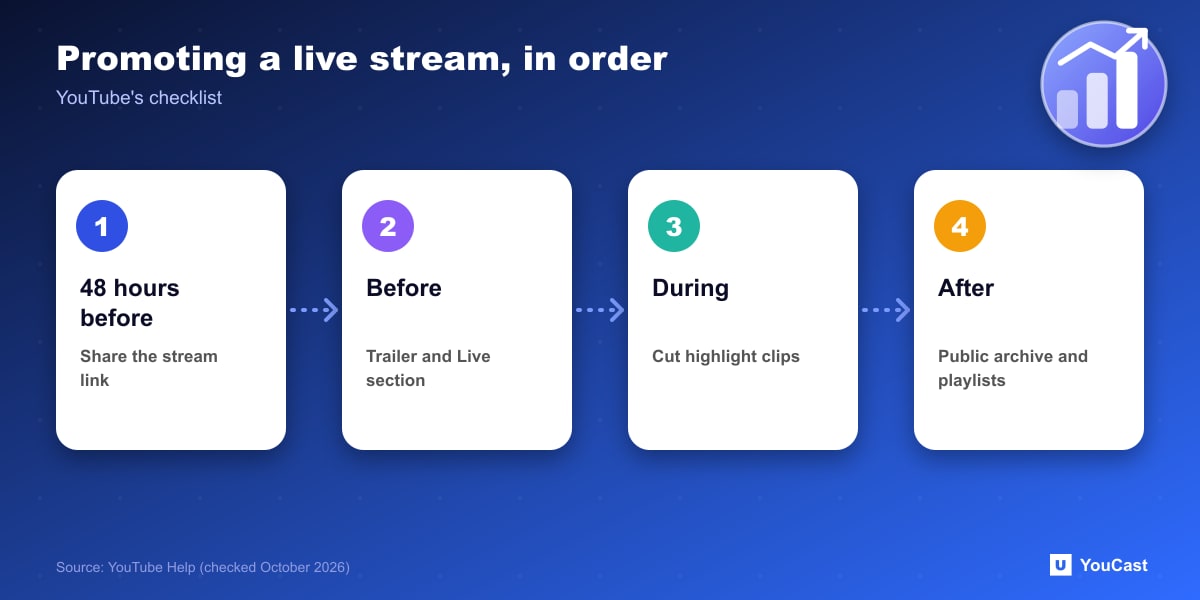
- Create a channel trailer or teaser video for the event.
- Share the streaming link at least 48 hours before you go live.
- Connect your social media accounts to your channel for easy sharing.
- Embed the URL on your website and send links to blogs that may want to display it.
- Create a Live section on the channel to display upcoming and live events.
- Add an Associated Website, which YouTube says helps verify your channel as the official representation of your brand.
During the Event
YouTube suggests creating highlight clips while the stream is still live and, if useful, updating the banner image with the event name, date and time. Subscribers may get a notification for public events in their homepage feed, and the stream appears in the What to Watch Next area.
After the Event
An archive of the live stream is uploaded by default. YouTube says setting archive visibility to Public can increase the reach of future streams, and recommends organizing the archive and highlights into playlists.
For mobile streams you can save a Short highlight, which is private by default. Setting it to Public can increase reach in the Shorts feed.
- Live stream between 10 minutes and 12 hours.
- Vertical format, streamed with the YouTube mobile app, and not a screencast.
- Chat enabled, not set as Made for Kids, and meeting safety standards.
Adapting It to a 24/7 Stream
Our reading: an always-on stream has no single event to promote, but the same ideas apply as a recurring routine: keep the title and thumbnail stable, announce new playlists or segments, and cut highlights to Shorts instead of waiting for the end.
Run the Stream, Spend Time on Growth
YouCast turns the videos you upload into a 24/7 live stream that runs from the cloud, to YouTube and, with a stream key, to Twitch, Kick and Instagram, so there is no encoder to configure, no computer to keep awake and no home upload line to saturate.
A 24/7 stream has no single event, so promote it as a routine. YouCast keeps the stream online while you share the link, refresh the title and thumbnail between runs and cut highlights.
You can try one stream on the free trial and add more streams as the channel grows.
Sources
- YouTube Help: Promote your live stream — checked October 2026
Further reading
- YouTube Help: Get started with live streaming — Official overview of live streaming on YouTube
- YouTube Help: Choose live encoder settings, bitrates, and resolutions — The ingestion settings table
- YouTube Help: YouTube Partner Program overview & eligibility — Thresholds and benefits
- YouTube Help: YouTube channel monetization policies — What reviewers check
Start Your 24/7 Stream Today
No PC needed. No OBS. Just upload your video and go live on YouTube — 24/7, from the cloud.