What Go Live Together Does
Eligible creators can invite a guest to live stream with them. Using a mobile phone to go live, your feed appears next to the guest's. You can schedule such a stream from a computer in the Live Control Room and go live from your phone, or go live immediately from the phone.
You can rotate guests, but only one guest can appear at a time. You can see the stream's analytics in Studio, but your guest cannot.
How to Invite a Guest
Anyone with a YouTube channel can be invited. The default orientation for the combined video is vertical.
- 1Tap Create, then Live, and tap Edit to select your video and broadcast settings.
- 2Toggle on Go Live Together, enter your metadata and tap Next.
- 3Under Invite a co-streamer, copy the link or send it through a messaging platform.
- 4When the guest joins the waiting room, you get a notification: select Add, then Go live.
Ads and Responsibility
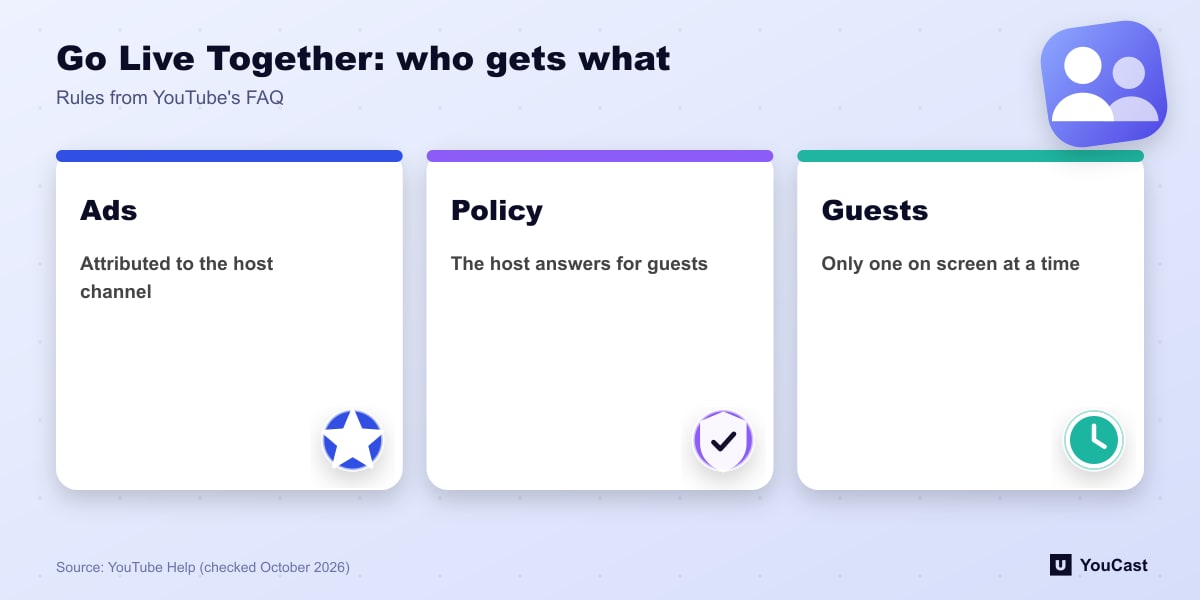
- Pre-roll, mid-roll and post-roll ads show on these streams and are attributed to the host channel.
- The host channel is responsible for live content, including guests: a guest's Community Guidelines or copyright violation counts against the host.
- Brief your guest about the policies before going live.
Common Problems
To reset an invite link, open Invite a co-streamer and click Reset Link; the old link stops working. If a guest cannot join, some messaging apps do not open the link correctly, and YouTube recommends resending it by email or text.
Run the Stream, Spend Time on Growth
YouCast turns the videos you upload into a 24/7 live stream that runs from the cloud, to YouTube and, with a stream key, to Twitch, Kick and Instagram, so there is no encoder to configure, no computer to keep awake and no home upload line to saturate.
Go Live Together is a mobile feature for streams with a host and a guest. YouCast is for the opposite format, a pre-recorded stream that runs without anyone on camera.
You can try one stream on the free trial and add more streams as the channel grows.
Sources
- YouTube Help: Invite a guest to your live stream with Go Live Together — checked October 2026
Further reading
- YouTube Help: Get started with live streaming — Official overview of live streaming on YouTube
- YouTube Help: Choose live encoder settings, bitrates, and resolutions — The ingestion settings table
- YouTube Help: YouTube Partner Program overview & eligibility — Thresholds and benefits
- YouTube Help: YouTube channel monetization policies — What reviewers check
Start Your 24/7 Stream Today
No PC needed. No OBS. Just upload your video and go live on YouTube — 24/7, from the cloud.