In short
A recurring schedule gives a stream a fixed daily or weekly window. Set the next start and stop and YouCast repeats that window. For a weekly schedule the end must be less than 7 days after the start. YouTube says scheduled streams can send viewers reminders, which is separate from YouCast's schedule.
Why Give a Stream a Weekly Window
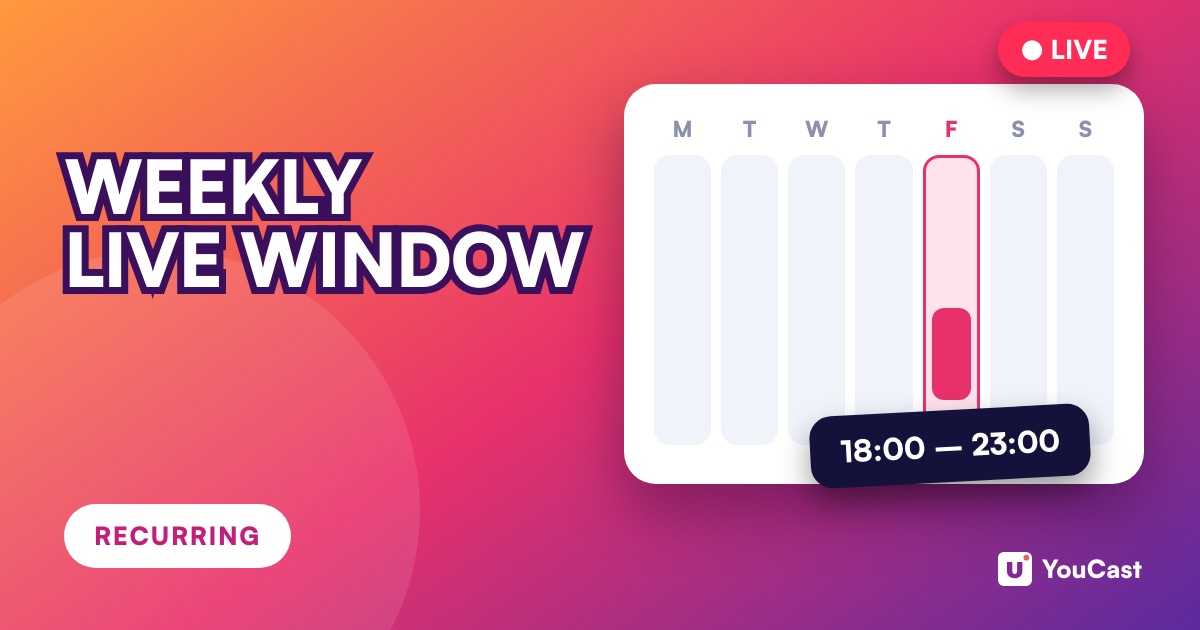
A stream that is always on has no single moment people can plan around. A recurring window gives one, for example every Friday from 18:00 to 23:00. This is our suggestion, not a YouTube rule.
Set a Weekly Window
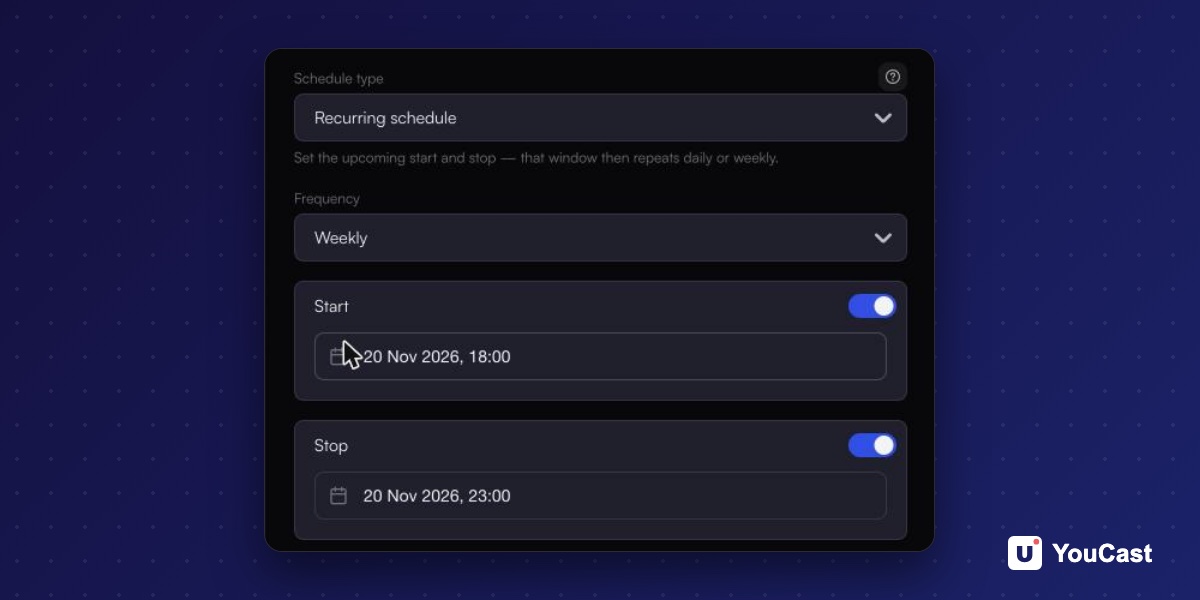
For a weekly schedule the end must be less than 7 days after the start.
- 1Create a stream or edit one and open the Schedule step.
- 2Choose Recurring schedule and set Frequency to Weekly.
- 3Set the next start, for example Friday at 18:00.
- 4Set the next stop, for example Friday at 23:00.
- 5Save the stream. That window then repeats every week.
Daily, Start Only and Stop Only
- Daily repeats the window every day, and the end must be less than 24 hours after the start.
- Start and Stop each have their own switch. With only Start on, YouCast starts the stream at that time every day or week. With only Stop on, it only stops the stream.
- When you open the form again it shows the upcoming window, not the one you first entered.
Tell Viewers When It Is Live
YouTube Help says that scheduling a stream lets you promote it: viewers can get reminders about upcoming streams and you can share the URL on social media. YouCast's recurring schedule controls when the stream is sent, and it is separate from a scheduled stream you create in YouTube Studio. In our view, the simplest way to build a habit is to put the times in your channel description and in your posts.
After the First Week
- Check that the stream went live and stopped at the times you set.
- If the clocks change, open the stream and save the schedule again.
How to Promote a YouTube Live Stream: Before, During and After
Ways to tell viewers about a stream.
Time Zones and Daylight Saving Time for Scheduled Live Streams
What to do when the clocks change.
YouTube's Schedule Stream vs YouCast Scheduling
What each one does.
Start Streaming with YouCast
Upload your videos once and stream them 24/7 from the cloud.
Run the Stream, Spend Time on Growth
YouCast turns the videos you upload into a 24/7 live stream that runs from the cloud, to YouTube and, with a stream key, to Twitch, Kick and Instagram, so there is no encoder to configure, no computer to keep awake and no home upload line to saturate.
Set a weekly recurring schedule in YouCast and tell viewers the times. The stream starts and stops in that window on its own.
You can try one stream on the free trial and add more streams as the channel grows.
Sources
- YouCast Docs: Scheduling — checked November 2026
- YouTube Help: Create a YouTube live stream with an encoder — checked November 2026
Further reading
- YouTube Help: Get started with live streaming — Official overview of live streaming on YouTube
- YouTube Help: Choose live encoder settings, bitrates, and resolutions — The ingestion settings table
- YouTube Help: YouTube Partner Program overview & eligibility — Thresholds and benefits
- YouTube Help: YouTube channel monetization policies — What reviewers check
Start Your 24/7 Stream Today
No PC needed. No OBS. Just upload your video and go live on YouTube — 24/7, from the cloud.