The Tools YouTube Lists
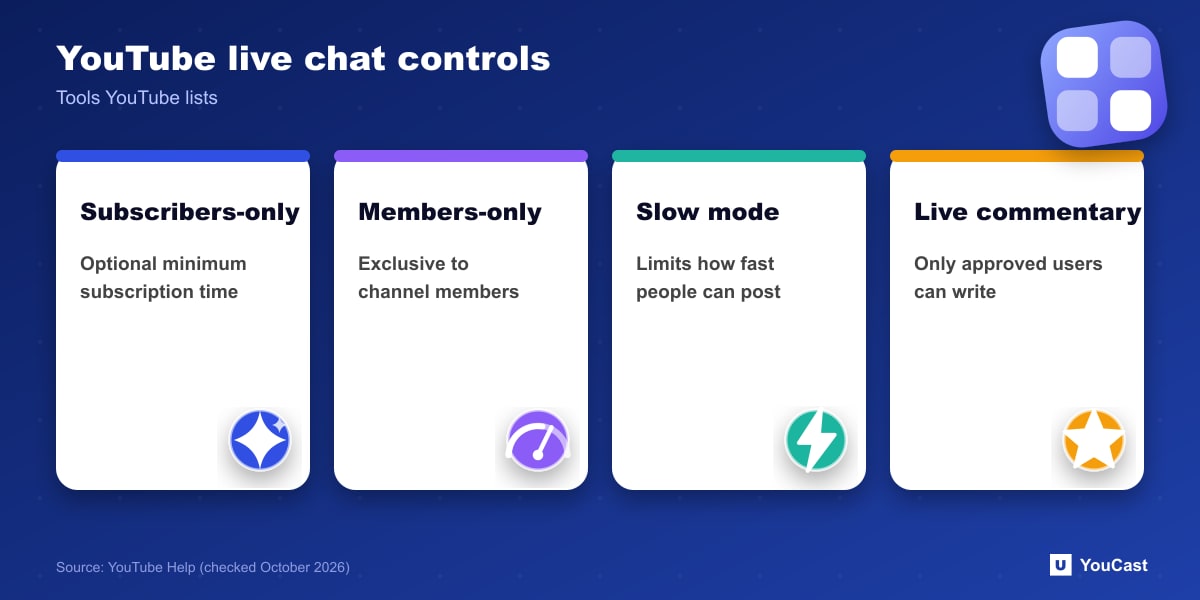
- Subscribers-only live chat, with an optional minimum subscription length. It can be changed before and during a live stream or Premiere, and other viewers can see that a participant is subscribed.
- Members-only live chat, for members of the channel. It cannot be on at the same time as subscribers-only chat.
- Slow mode, which can be combined with subscribers-only chat.
- Live commentary mode, where only approved users can send messages while other viewers can read them. If the approved list is empty, only your own channel can write.
- Moderators: trusted people who help review and manage the messages participants send during a stream.
AI-Generated Chat Summaries
YouTube notes that new viewers joining a live stream may see an AI-generated summary of the chat, and that it can be disabled; on mobile, moderators can disable AI-generated summaries per stream in the chat moderation settings.
Which Setting for an Unattended Stream
A 24/7 stream with nobody watching chat needs a deliberate choice. These options are our suggestions and not YouTube recommendations: slow mode and subscribers-only chat reduce spam when nobody is monitoring; live commentary mode with an empty list effectively makes chat read-only; and turning chat off removes the need to moderate at all, with the downside that Super Chat and memberships need live chat to be on.
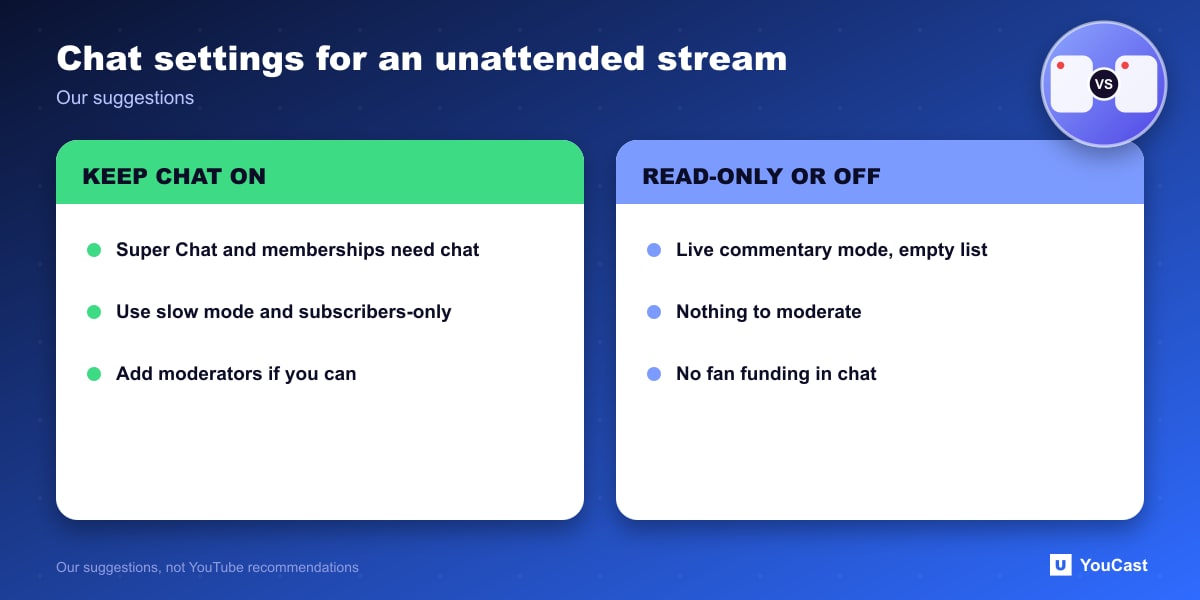
Super Chat and Super Stickers are available on streams where live chat is turned on. If you want fan funding, keep chat on and rely on slow mode or restricted participation.
Skip the Setup With YouCast
YouCast turns the videos you upload into a 24/7 live stream that runs from the cloud, to YouTube and, with a stream key, to Twitch, Kick and Instagram, so there is no encoder to configure, no computer to keep awake and no home upload line to saturate.
For an unattended YouCast stream, slow mode and subscribers-only chat reduce spam when nobody is watching chat. Set them in YouTube Studio before you leave the stream running.
You can try one stream on the free trial and add more streams as the channel grows.
Sources
- YouTube Help: Moderate live chat — checked October 2026
Further reading
- YouTube Help: Get started with live streaming — Official overview of live streaming on YouTube
- YouTube Help: Choose live encoder settings, bitrates, and resolutions — The ingestion settings table
- YouTube Help: YouTube Partner Program overview & eligibility — Thresholds and benefits
- YouTube Help: YouTube channel monetization policies — What reviewers check
Start Your 24/7 Stream Today
No PC needed. No OBS. Just upload your video and go live on YouTube — 24/7, from the cloud.