Two Ways to Use It
YouTube describes two options. You can create a live stream whose visibility is Members only, optionally limited to specific membership levels, or you can transition a public live stream to members-only while you are live. Non-members can only see the thumbnail and metadata, as with standard members-only videos, and members are notified like regular subscribers.
- 1On a computer, open YouTube Studio, click Create, then Go live.
- 2Follow the steps to create the stream.
- 3In Visibility, choose All paid members or a specific level and up.
- 4Schedule the stream or go live.
Transitioning a Public Stream to Members-Only
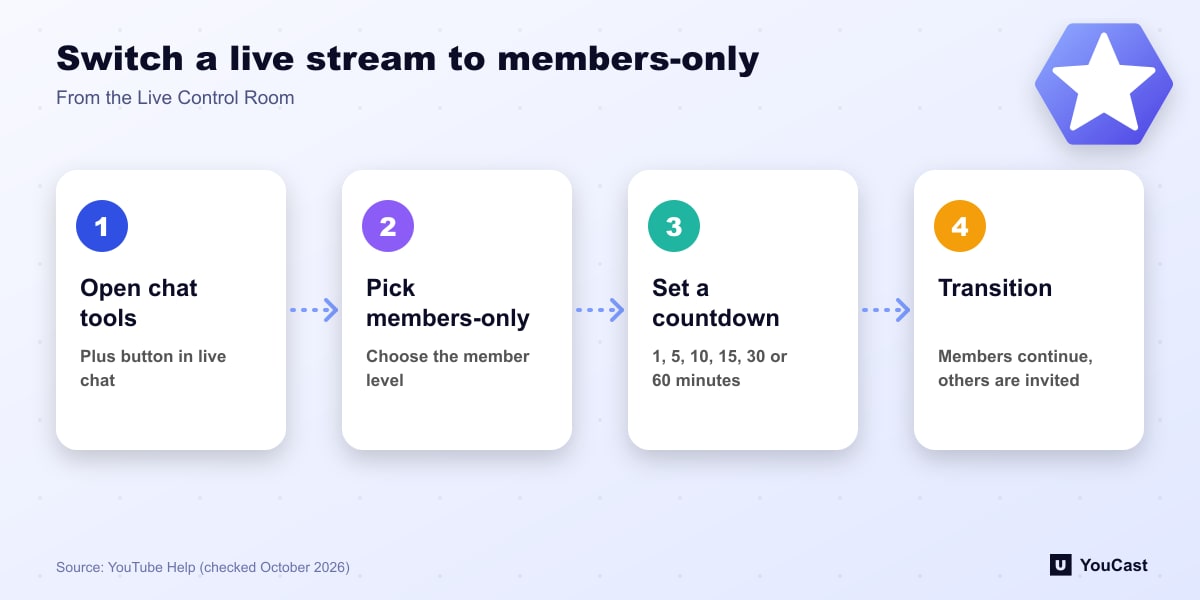
While streaming, open the Live Control Room, click the plus button in the live chat box and choose Members-only live stream. Select the member level and set a countdown of 1, 5, 10, 15, 30 or 60 minutes, then click Schedule. When the timer ends, members move automatically to the members-only stream, and non-members are prompted to join.
You can chain multiple transitions to more restricted levels, and cancel one by clicking the countdown timer in chat. YouTube recommends testing first with an unlisted stream.
Archiving and Limits
- With DVR active, the channel hosts two separate videos: a public segment and a members-only one.
- The members-only video inherits the public stream's title and description, and you can edit them afterwards.
- Analytics show the two streams as separate videos.
- You can only switch while already live, not schedule the transition in advance.
- It currently works from desktop on streams that are not vertical.
Best Practices From YouTube
YouTube suggests being transparent about the transition time, framing the public part as a teaser, optionally using an abrupt cliffhanger after fair warning, updating metadata for each segment and hosting a relaxed after-show for the core community.
Where YouCast Fits in a Revenue Plan
YouCast turns the videos you upload into a 24/7 live stream that runs from the cloud, to YouTube and, with a stream key, to Twitch, Kick and Instagram, so there is no encoder to configure, no computer to keep awake and no home upload line to saturate.
Switching to members-only works while you are live in the Live Control Room. Use it for scheduled moments, and let YouCast keep the public stream running the rest of the time.
You can try one stream on the free trial and add more streams as the channel grows.
Sources
- YouTube Help: Live stream to members-only — checked October 2026
Further reading
- YouTube Help: Get started with live streaming — Official overview of live streaming on YouTube
- YouTube Help: Choose live encoder settings, bitrates, and resolutions — The ingestion settings table
- YouTube Help: YouTube Partner Program overview & eligibility — Thresholds and benefits
- YouTube Help: YouTube channel monetization policies — What reviewers check
Start Your 24/7 Stream Today
No PC needed. No OBS. Just upload your video and go live on YouTube — 24/7, from the cloud.