How the Review Works
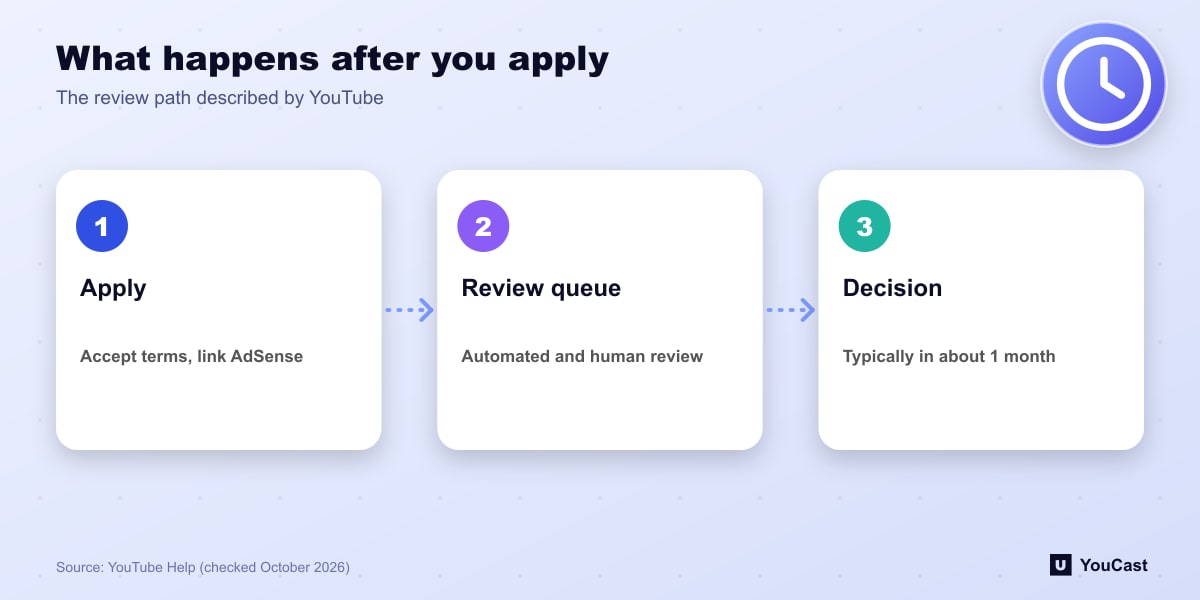
After you accept the partner terms and link an active AdSense for YouTube account, YouTube puts the channel in a review queue. According to the help page, automated systems and human reviewers look at the channel as a whole to check that it follows YouTube's policies and guidelines.
YouTube says it typically replies in about one month, and that delays are possible because of higher application volumes, system issues or resource limits. Applications are handled in the order they are received, and some channels need several reviews, especially when reviewers disagree.
If the First Application Is Declined
The page gives a specific set of options. You can appeal the decision within 21 days. Or you can keep uploading original content and reapply after a 30-day period. If it is not your first rejection, or you have reapplied before, you can try again after a 90-day period.
YouTube adds that reviewers likely found that a significant portion of the channel does not currently follow its policies and guidelines, and suggests reviewing them against the channel before reapplying.
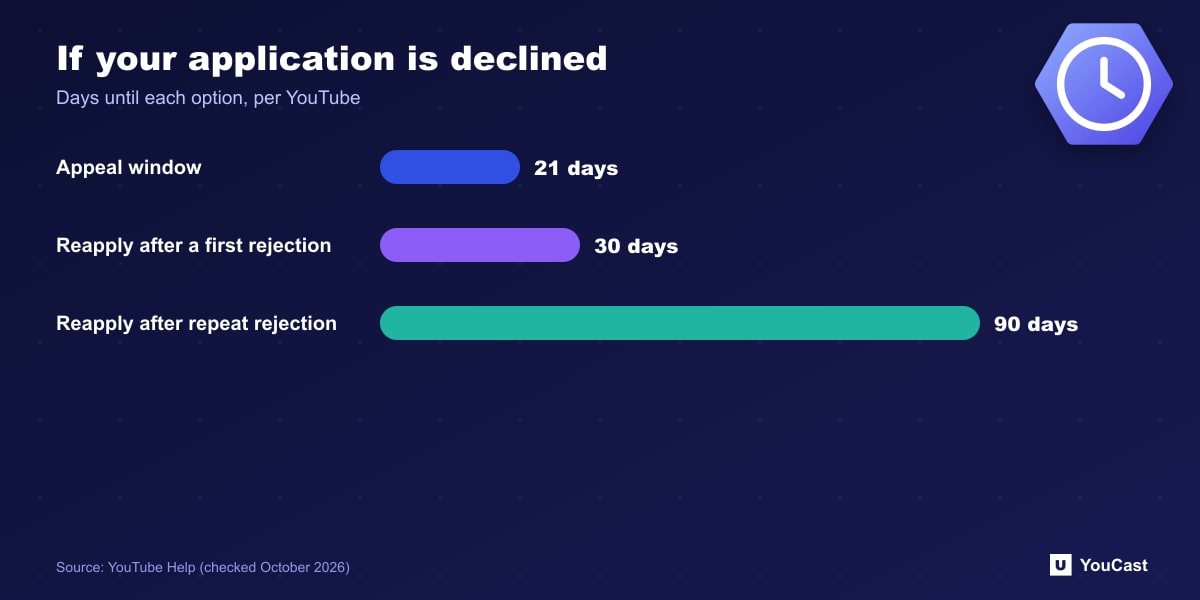
- Appeal window: 21 days from the decision.
- Reapply after: 30 days for a first rejection.
- Reapply after: 90 days if it is not your first rejection or you have reapplied before.
Strengthening a Channel Before Reapplying
The policy that most often matters for automated channels is inauthentic content. Check whether videos or streams are repetitive or mass-produced, whether there is meaningful variation, and whether you are using other people's material without adding anything of your own.
Where YouCast Fits in a Revenue Plan
YouCast turns the videos you upload into a 24/7 live stream that runs from the cloud, to YouTube and, with a stream key, to Twitch, Kick and Instagram, so there is no encoder to configure, no computer to keep awake and no home upload line to saturate.
While you wait for a review, a running stream and a clear, varied playlist are the easiest things to keep in good shape. In YouCast you can build and reorder the playlist before the stream starts.
You can try one stream on the free trial and add more streams as the channel grows.
Sources
- YouTube Help: YouTube Partner Program overview & eligibility — checked October 2026
Further reading
- YouTube Help: Get started with live streaming — Official overview of live streaming on YouTube
- YouTube Help: Choose live encoder settings, bitrates, and resolutions — The ingestion settings table
- YouTube Help: YouTube channel monetization policies — What reviewers check
- YouTube Help: Advertiser-friendly content guidelines — What can earn ad revenue
Start Your 24/7 Stream Today
No PC needed. No OBS. Just upload your video and go live on YouTube — 24/7, from the cloud.